

Inviting your team
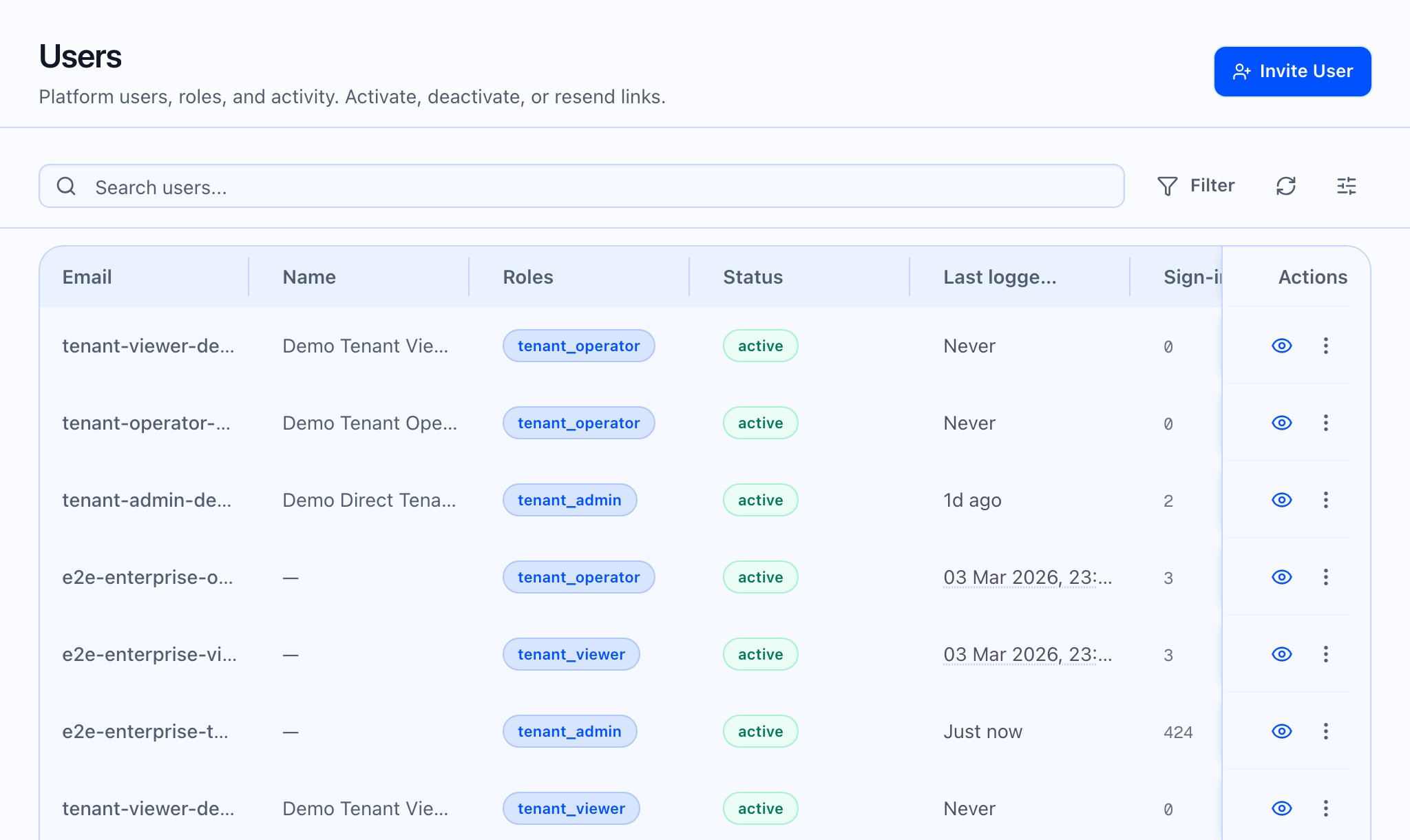
Invite a tenant user
- Open Users from the left nav (Admin → Users).
- Click Invite User.
- Enter email and select a role:
- Tenant Admin
- Tenant Operator (default)
- Tenant Viewer
- Submit. The app sends the invite with the email and role you entered.

 What the video should show: Chapters: open Users → Invite User → explain each role in one sentence (permissions are enforced server-side) → where to find Activity or row actions if present.
Partner and platform (not the same flow)
- Partner and Platform orgs use different invite experiences with different rules; this article focuses on tenant Users only.
Related
- Setting up your account
- What Callaro does in the web app
- Integrations in the web app — API keys and operational areas for integrations