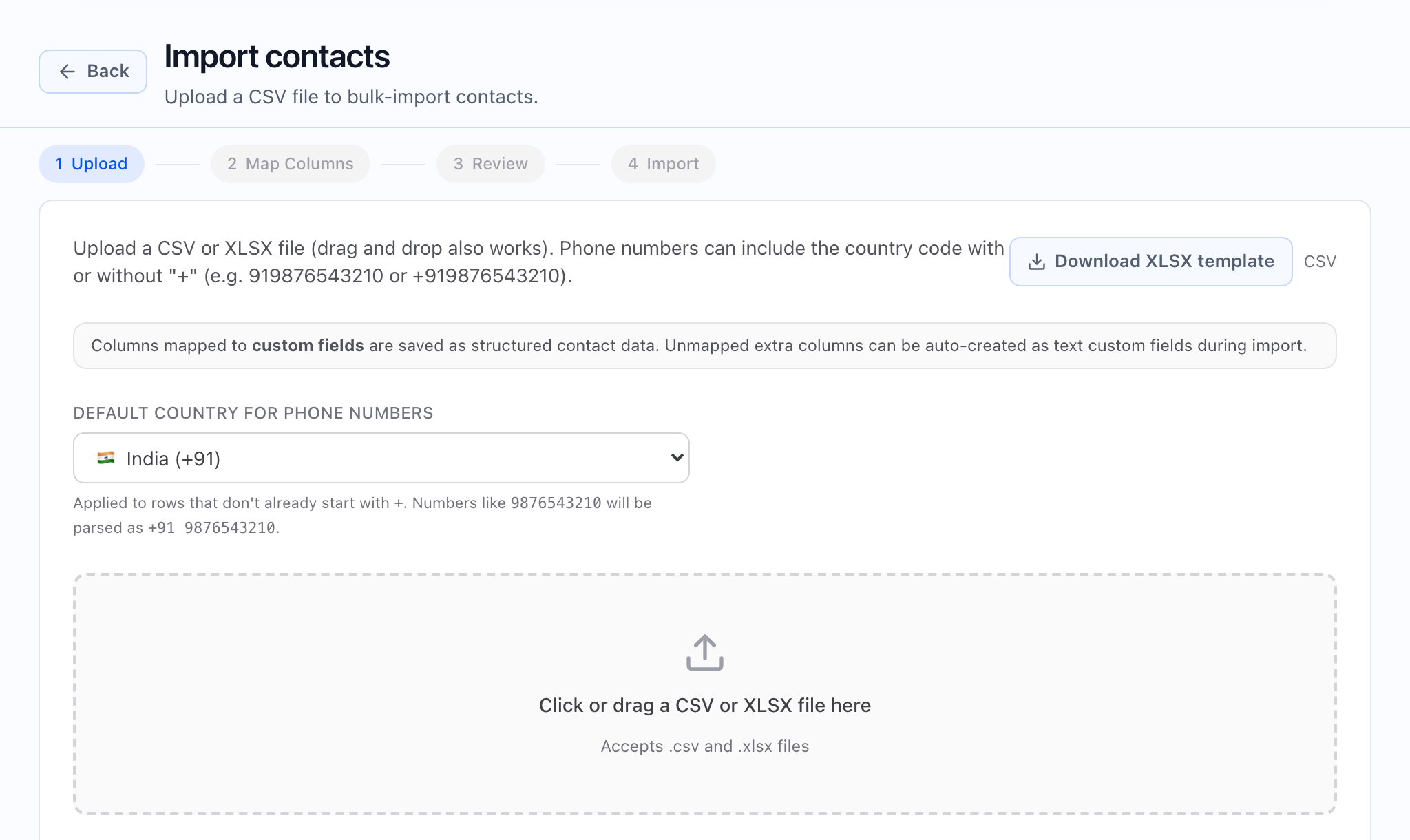
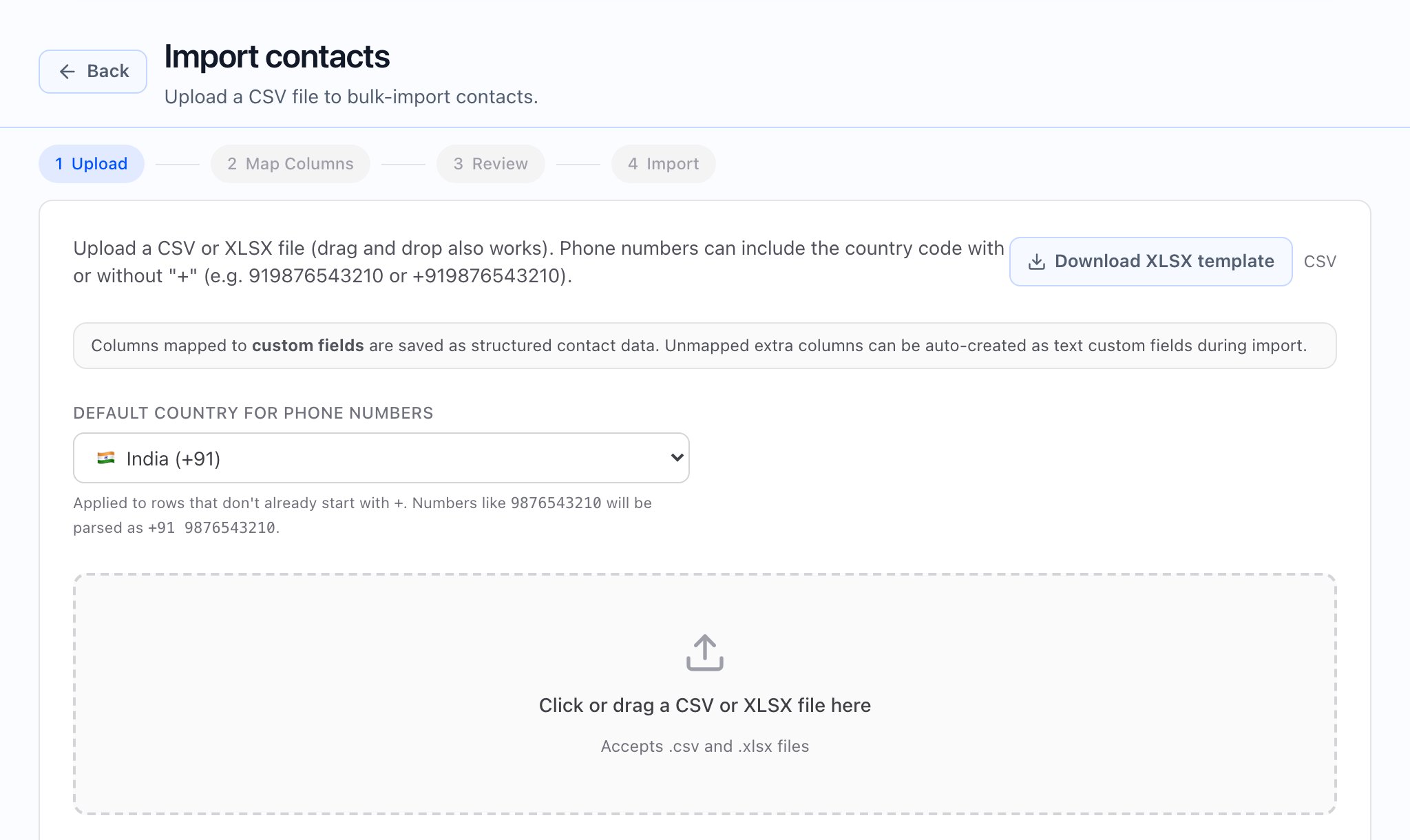
In the app, go to Contacts and start Import contacts. The page title is Import contacts and the subtitle is Upload a CSV file to bulk-import contacts. You can also open View import history from the More menu on the contacts list when you need past jobs (see Import history and error reports).After Start import succeeds, the app opens the import status page for that job so you can watch progress, preview problems, and download an error file when the product offers it. For what each control means, see Import history and error reports.
Steps in the stepper:1 Upload → 2 Map Columns → 3 Review → 4 Import (the labels match what you see on screen).
In Map Columns, each column can map to a standard field, — Skip —, or a (custom) field from your tenant. Phone is required; other targets include first name, last name, email, company, tags, timezone, and your custom field definitions.
You must have a workspace (tenant) selected in the header. If it is missing, the app shows a message like Select a tenant to import contacts.
At least one column you will map to Phone (required).
Optional columns for name, email, company, tags, timezone, and custom fields your tenant already defined.
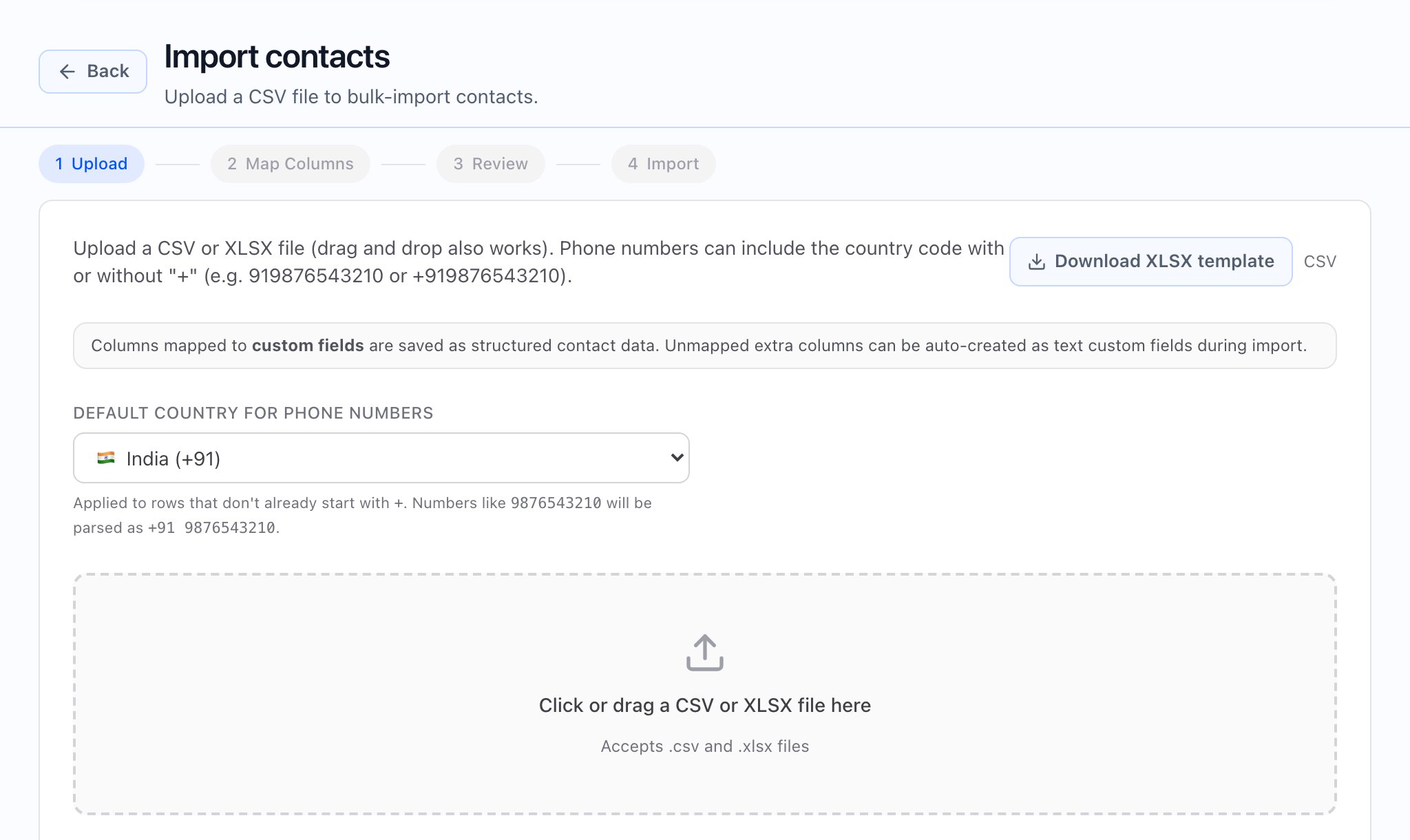
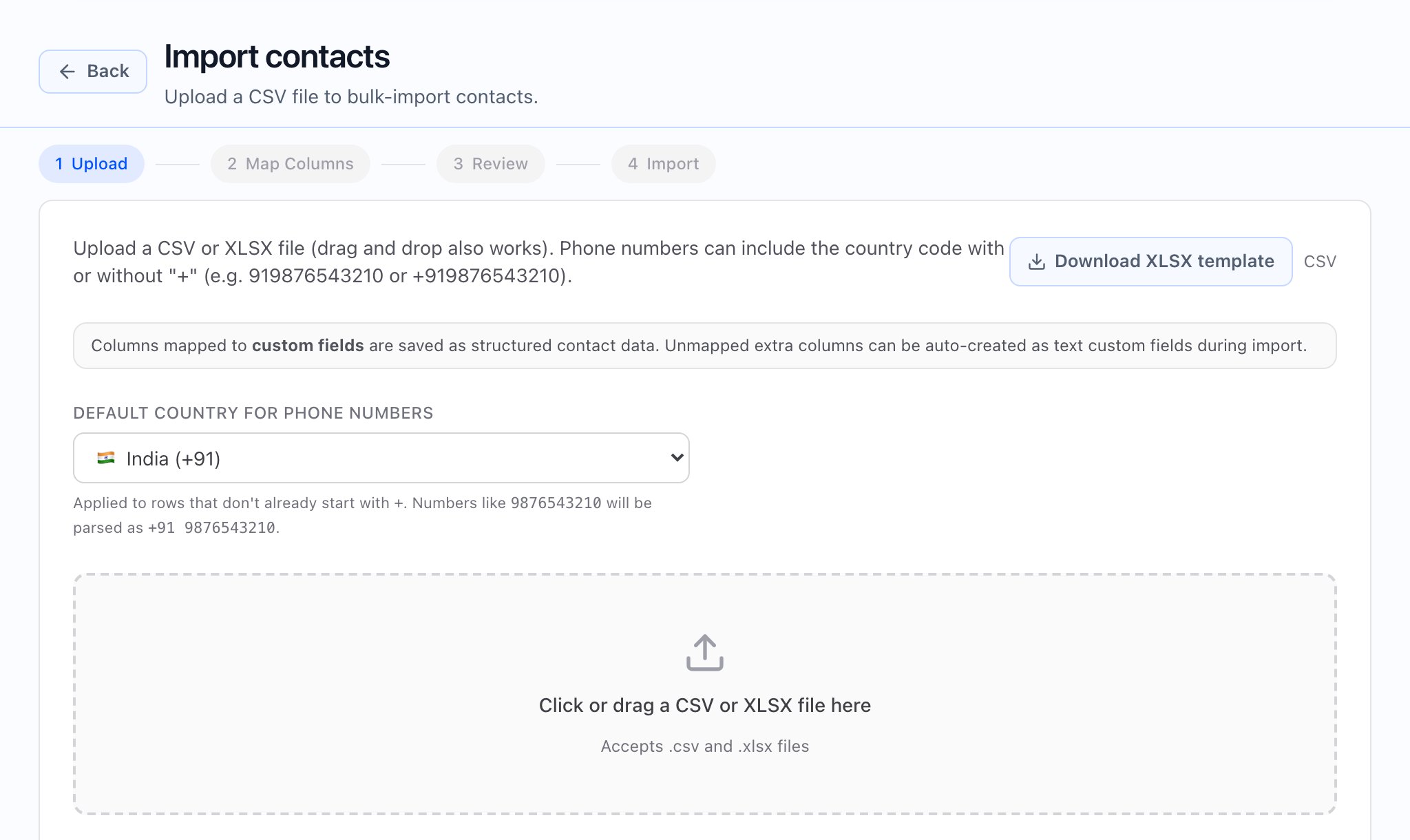
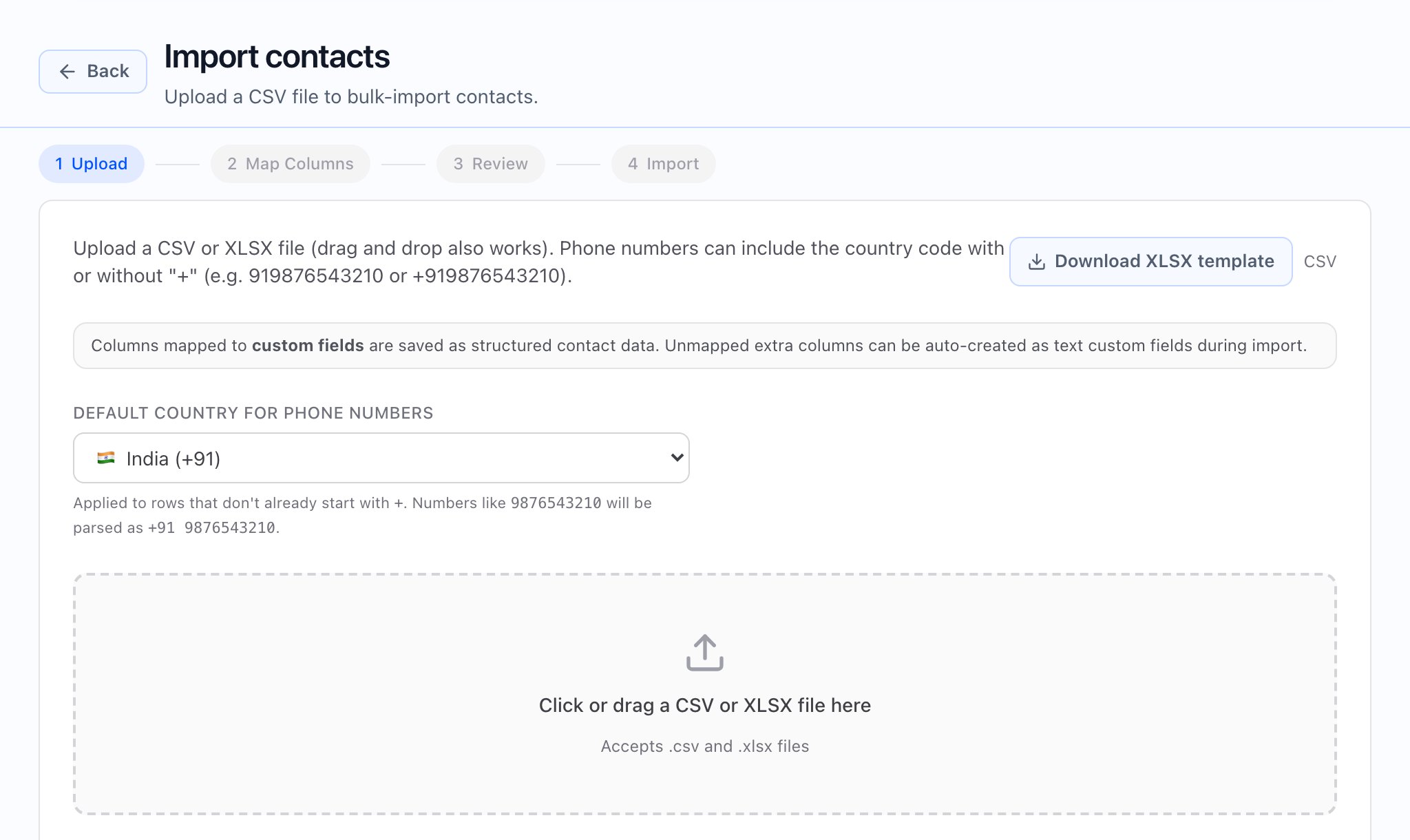
Upload area copy to expect: the app explains that you can upload a CSV or drag and drop it, and that phone numbers may include a country code with or without a leading plus. Use Click or drag a CSV file here when you are ready to pick a file (.csv only).
Pro tip: use Download templateDownload template gives you a ready-made CSV named contacts_template.csv with the columns the importer expects: phone, first name, last name, email, company, timezone, and one column per custom field. Sample values match types where the app can suggest them.
The helper text on this step explains that columns you map to custom fields are stored as structured contact data, and that unmapped extra columns can optionally be turned into new text custom fields during the import (see the auto-create option in later steps if it applies).Next: Map columns stays disabled until a file is selected and the header row is read successfully.
The instructions say: Map each CSV column to a contact field or custom field. The Phone field is required.For each column, pick a target in the dropdown. The app tries to help by auto-matching common header names to the right field.
If two columns map to the same target, that row is highlighted in amber and you see a Duplicate message—change one of the targets before you continue.
If Phone is not mapped, the app shows You must map at least one column to Phone. and Next: Review stays disabled.
If some columns are still unmapped, you may see an option to auto-create custom fields for those columns in the next steps (wording includes how many columns would be created).
Watch out: duplicate mappingsTreat Duplicate warnings as blocking: they match the app’s own validation in Map Columns—the wizard will not let you move on until you fix them.
Review shows an Import summary with Total rows, how many Mapped fields you have, and Missing phone (highlighted in amber if any rows have no phone after mapping). You will also see a Column mapping list that pairs each file header with the field you chose, plus counts for how many rows will be skipped for missing phone when applicable.If auto-create is on for unmapped headers, the summary states how many unmapped columns will become new text custom fields.
When you choose Start import, the app shows Importing contacts… while the work runs. If something fails, you may see Import failed and Try again, which takes you back to the review step so you can adjust and resubmit. On success, the app takes you straight to the import status page for that run—there is not a separate “all done” screen in between.After import starts: stay on the status page the app opened. There you can track progress and use Preview errors or Download errors when the product makes them available. For details, see Import history and error reports.
Auto-create unmapped custom fields (when to use it)
When the checkbox appears, it is labeled to match how many unmapped columns would become new custom fields, for example Auto-create custom fields for N unmapped column(s). Turn it on only if you want those extra columns to create new field definitions. Turn it off if you are cleaning up a messy export and do not want new schema from one-off column names.
Open Import history and error reports and find the run you care about, or use the import list from More → View import history on the contacts list, then open the same job.
Confirm Status and the created / updated / skipped counts.
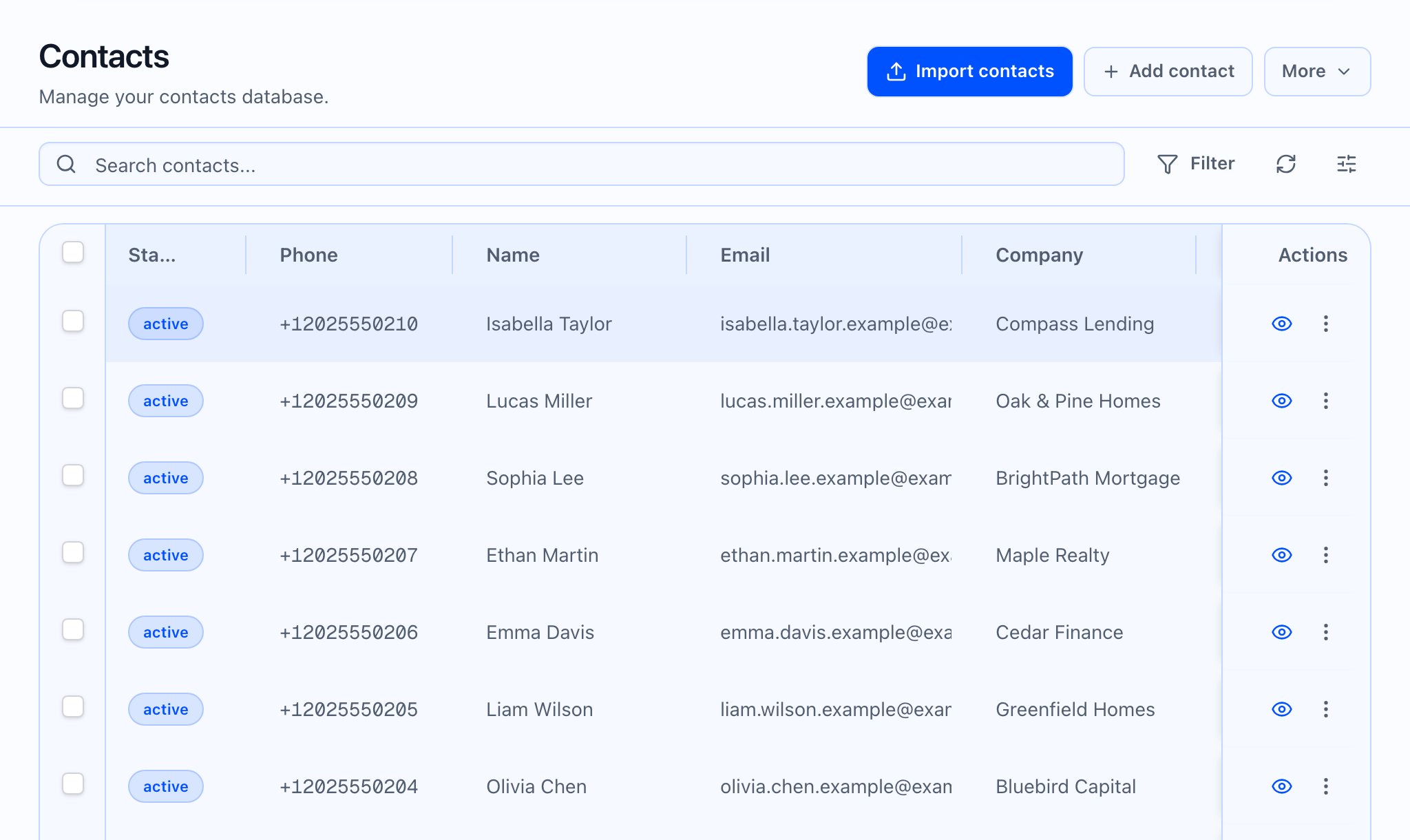
Open Contacts and spot-check a few records to ensure fields look right.
Next: segment and launchUse filters and segments on the contacts you imported, then attach audiences in a campaign.
{"docsConfig":{"theme":"mint","$schema":"https://mintlify.com/docs.json","name":"Callaro Help Center","description":"Guides for the Callaro web app: campaigns, contacts, phone numbers, scripts, and billing.","colors":{"primary":"#0052FF","light":"#3D7DFF","dark":"#0039B3"},"logo":{"light":"https://mintcdn.com/callaro-docs/1fJs_sKJdgiwY8nj/logo/light.svg?fit=max\u0026auto=format\u0026n=1fJs_sKJdgiwY8nj\u0026q=85\u0026s=b4e9b0f10ca008cd68d7bdbbe215607c","dark":"https://mintcdn.com/callaro-docs/1fJs_sKJdgiwY8nj/logo/dark.svg?fit=max\u0026auto=format\u0026n=1fJs_sKJdgiwY8nj\u0026q=85\u0026s=4787e8425d9f356f4a799c6448de8a70"},"favicon":"https://mintcdn.com/callaro-docs/1fJs_sKJdgiwY8nj/logo/favicon.svg?fit=max\u0026auto=format\u0026n=1fJs_sKJdgiwY8nj\u0026q=85\u0026s=54859336d53c8d359301bed53c832cde","appearance":{"default":"system","strict":false},"navbar":{"links":[{"href":"https://app.callaro.ai","label":"App"},{"href":"https://developers.callaro.ai","label":"Developer docs"}],"primary":{"type":"button","label":"Open Callaro","href":"https://app.callaro.ai"}},"footer":{"socials":{"linkedin":"https://www.linkedin.com/company/callaro-ai","x":"https://x.com/callaroai","github":"https://github.com/callaro"}},"search":{"prompt":"Search help guides"},"seo":{"metatags":{"og:site_name":"Callaro Help Center","og:url":"https://help.callaro.ai","twitter:domain":"help.callaro.ai"},"indexing":"all"},"styling":{"latex":false},"navigation":{"directory":"card","pages":[]}},"deployment":{"deploymentMetadataValue":{"subdomain":"callaro-docs","hasAudioNarration":false,"actualSubdomain":"callaro-docs","customDomains":["help.callaro.ai"],"gitSource":{"type":"github","owner":"peacetimetech","repo":"callaro-docs","deployBranch":"main","contentDirectory":"user-guides","isPrivate":true,"mountPath":"","label":""},"chroma":{"latestBuiltDeploymentHistoryId":"6ab3a1f0ac61b60baf6fef75","collectionId":"425f4622-e0ad-4148-8684-133ef82eff36","liveDeploymentHistoryId":"6ab3a1f0ac61b60baf6fef75","schemaVersion":"v3"},"entitlements":{},"buildId":"6ab3a1f0ac61b60baf6fef75","clientVersion":"0.0.3990","searchFilterCounts":[]},"assistantConfig":{"enableAskAiButton":false,"enableStarterQuestions":false,"enableContextualStarterQuestions":false,"enableAskAiSearchBar":true},"basePath":"","hasChatPermissions":false,"hasWebMcpPermissions":false,"toggles":[{"name":"kill-isr","enabled":true,"variant":{"name":"disabled","enabled":false,"feature_enabled":true},"impressionData":false},{"name":"agent-mintlify-slack","enabled":true,"variant":{"name":"disabled","enabled":false,"feature_enabled":true},"impressionData":false},{"name":"editor-v7-file-tree","enabled":true,"variant":{"name":"disabled","enabled":false,"feature_enabled":true},"impressionData":false},{"name":"agent-integrations-settings","enabled":true,"variant":{"name":"disabled","enabled":false,"feature_enabled":true},"impressionData":false},{"name":"automations-pr-grouping","enabled":true,"variant":{"name":"disabled","enabled":false,"feature_enabled":true},"impressionData":false},{"name":"custom-prefix","enabled":true,"variant":{"name":"disabled","enabled":false,"feature_enabled":true},"impressionData":false},{"name":"analytics-v7","enabled":true,"variant":{"name":"disabled","enabled":false,"feature_enabled":true},"impressionData":false},{"name":"user-flows-analytics","enabled":true,"variant":{"name":"disabled","enabled":false,"feature_enabled":true},"impressionData":false},{"name":"no-publish-flow","enabled":true,"variant":{"name":"disabled","enabled":false,"feature_enabled":true},"impressionData":false},{"name":"workos-onboarding","enabled":true,"variant":{"name":"disabled","enabled":false,"feature_enabled":true},"impressionData":false},{"name":"llms-txt-v2","enabled":true,"variant":{"name":"disabled","enabled":false,"feature_enabled":true},"impressionData":false},{"name":"pause-universal-search-reconcile","enabled":true,"variant":{"name":"disabled","enabled":false,"feature_enabled":true},"impressionData":false},{"name":"snapshot-serving-live","enabled":true,"variant":{"name":"disabled","enabled":false,"feature_enabled":true},"impressionData":false},{"name":"stripTemperatureMiddleware","enabled":true,"variant":{"name":"disabled","enabled":false,"feature_enabled":true},"impressionData":false},{"name":"per-site-search-delta","enabled":true,"variant":{"name":"disabled","enabled":false,"feature_enabled":true},"impressionData":false},{"name":"support-platform-pylon-zendesk","enabled":true,"variant":{"name":"disabled","enabled":false,"feature_enabled":true},"impressionData":false},{"name":"snapshot-serving","enabled":true,"variant":{"name":"disabled","enabled":false,"feature_enabled":true},"impressionData":false},{"name":"instant-rollback","enabled":true,"variant":{"name":"disabled","enabled":false,"feature_enabled":true},"impressionData":false},{"name":"granular-notifications-server","enabled":true,"variant":{"name":"disabled","enabled":false,"feature_enabled":true},"impressionData":false},{"name":"granular-notifications","enabled":true,"variant":{"name":"disabled","enabled":false,"feature_enabled":true},"impressionData":false},{"name":"editor-private-page-search","enabled":true,"variant":{"name":"disabled","enabled":false,"feature_enabled":true},"impressionData":false},{"name":"automations-fable","enabled":true,"variant":{"name":"disabled","enabled":false,"feature_enabled":true},"impressionData":false},{"name":"fixed-ai-action-pricing","enabled":true,"variant":{"name":"disabled","enabled":false,"feature_enabled":true},"impressionData":false},{"name":"automation-resolve-merge-conflict","enabled":true,"variant":{"name":"disabled","enabled":false,"feature_enabled":true},"impressionData":false},{"name":"scoped-publishing","enabled":true,"variant":{"name":"disabled","enabled":false,"feature_enabled":true},"impressionData":false},{"name":"mintql","enabled":true,"variant":{"name":"disabled","enabled":false,"feature_enabled":true},"impressionData":false},{"name":"page-level-analytics","enabled":true,"variant":{"name":"disabled","enabled":false,"feature_enabled":true},"impressionData":false},{"name":"editor-version-history-v2","enabled":true,"variant":{"name":"disabled","enabled":false,"feature_enabled":true},"impressionData":false},{"name":"editor-nav-generations","enabled":true,"variant":{"name":"disabled","enabled":false,"feature_enabled":true},"impressionData":false},{"name":"billing-page-v2","enabled":true,"variant":{"name":"disabled","enabled":false,"feature_enabled":true},"impressionData":false},{"name":"workspace-projects","enabled":true,"variant":{"name":"disabled","enabled":false,"feature_enabled":true},"impressionData":false},{"name":"assistant-v5","enabled":true,"variant":{"name":"disabled","enabled":false,"feature_enabled":true},"impressionData":false},{"name":"byok-sep-25","enabled":true,"variant":{"name":"disabled","enabled":false,"feature_enabled":true},"impressionData":false},{"name":"fork-pr-previews","enabled":true,"variant":{"name":"disabled","enabled":false,"feature_enabled":true},"impressionData":false},{"name":"revalidation-jwt","enabled":true,"variant":{"name":"disabled","enabled":false,"feature_enabled":true},"impressionData":false},{"name":"vite-origin","enabled":true,"variant":{"name":"disabled","enabled":false,"feature_enabled":true},"impressionData":false},{"name":"editor-agent-model-picker","enabled":true,"variant":{"name":"disabled","enabled":false,"feature_enabled":true},"impressionData":false},{"name":"billing-updated-9-15","enabled":true,"variant":{"name":"disabled","enabled":false,"feature_enabled":true},"impressionData":false},{"name":"workos-sso-scim","enabled":true,"variant":{"name":"disabled","enabled":false,"feature_enabled":true},"impressionData":false},{"name":"hobby-abuse-scan","enabled":true,"variant":{"name":"disabled","enabled":false,"feature_enabled":true},"impressionData":false},{"name":"dashboard-inbox","enabled":true,"variant":{"name":"disabled","enabled":false,"feature_enabled":true},"impressionData":false},{"name":"workos-signup","enabled":true,"variant":{"name":"disabled","enabled":false,"feature_enabled":true},"impressionData":false},{"name":"workos-enabled","enabled":true,"variant":{"name":"disabled","enabled":false,"feature_enabled":true},"impressionData":false}],"isAtlas":false,"googleFontsInlined":false},"customCss":[],"page":{"pagePath":"contacts/import-contacts-from-csv","slug":"/contacts/import-contacts-from-csv","pageMetadata":{"title":null,"description":null,"href":"/contacts/import-contacts-from-csv"},"pageType":"default","mdx":{"mdxSource":{"compiledSource":"\"use strict\";const{Fragment:_Fragment,jsx:_jsx,jsxs:_jsxs}=arguments[0];const{useMDXComponents:_provideComponents}=arguments[0];function _createMdxContent(props){const _components={a:`a`,li:`li`,ol:`ol`,p:`p`,strong:`strong`,ul:`ul`,..._provideComponents(),...props.components},{Heading,OptimizedImage,Tip,Warning}=_components;if(!Heading)_missingMdxReference(`Heading`,true);if(!OptimizedImage)_missingMdxReference(`OptimizedImage`,true);if(!Tip)_missingMdxReference(`Tip`,true);if(!Warning)_missingMdxReference(`Warning`,true);return _jsxs(_Fragment,{children:[_jsx(Heading,{level:`1`,id:`import-contacts-from-csv`,children:`Import contacts from CSV`}),`\n`,_jsxs(_components.p,{children:[`In the app, go to `,_jsx(_components.strong,{children:`Contacts`}),` and start `,_jsx(_components.strong,{children:`Import contacts`}),`. The page title is `,_jsx(_components.strong,{children:`Import contacts`}),` and the subtitle is `,_jsx(_components.strong,{children:`Upload a CSV file to bulk-import contacts.`}),` You can also open `,_jsx(_components.strong,{children:`View import history`}),` from the `,_jsx(_components.strong,{children:`More`}),` menu on the contacts list when you need past jobs (see `,_jsx(_components.a,{href:`/contacts/import-history-and-error-reports`,children:`Import history and error reports`}),`).`]}),`\n`,_jsx(OptimizedImage,{src:`https://mintcdn.com/callaro-docs/Rn-efrjnSIS1s0ID/images/contacts/slot-01.png?fit=max\u0026auto=format\u0026n=Rn-efrjnSIS1s0ID\u0026q=85\u0026s=3c400e7501f51fac70e20a00692ed926`,alt:`MEDIA: STATIC — Stepper showing all four steps; Upload step with Download template and drop zone.`,\"data-og-width\":`2048`,width:`2048`,\"data-og-height\":`1220`,height:`1220`,\"data-path\":`images/contacts/slot-01.png`,\"data-optimize\":`true`,\"data-opv\":`3`,srcset:`https://mintcdn.com/callaro-docs/Rn-efrjnSIS1s0ID/images/contacts/slot-01.png?w=280\u0026fit=max\u0026auto=format\u0026n=Rn-efrjnSIS1s0ID\u0026q=85\u0026s=8130359e7f2c0d6780ab298478ad0ab6 280w, https://mintcdn.com/callaro-docs/Rn-efrjnSIS1s0ID/images/contacts/slot-01.png?w=560\u0026fit=max\u0026auto=format\u0026n=Rn-efrjnSIS1s0ID\u0026q=85\u0026s=4661a7ff9cd08f101c2daa67c9e7dede 560w, https://mintcdn.com/callaro-docs/Rn-efrjnSIS1s0ID/images/contacts/slot-01.png?w=840\u0026fit=max\u0026auto=format\u0026n=Rn-efrjnSIS1s0ID\u0026q=85\u0026s=d18ce4776cb65902656376ad6012f9b0 840w, https://mintcdn.com/callaro-docs/Rn-efrjnSIS1s0ID/images/contacts/slot-01.png?w=1100\u0026fit=max\u0026auto=format\u0026n=Rn-efrjnSIS1s0ID\u0026q=85\u0026s=963542cc5d3efdf0c167f4652785b24e 1100w, https://mintcdn.com/callaro-docs/Rn-efrjnSIS1s0ID/images/contacts/slot-01.png?w=1650\u0026fit=max\u0026auto=format\u0026n=Rn-efrjnSIS1s0ID\u0026q=85\u0026s=d9c0c66b02b18a274c867607e04daa57 1650w, https://mintcdn.com/callaro-docs/Rn-efrjnSIS1s0ID/images/contacts/slot-01.png?w=2500\u0026fit=max\u0026auto=format\u0026n=Rn-efrjnSIS1s0ID\u0026q=85\u0026s=368e984ce4a831d28817c5fad8a66259 2500w`}),`\n`,_jsx(OptimizedImage,{src:`https://mintcdn.com/callaro-docs/Rn-efrjnSIS1s0ID/images/contacts/slot-01.gif?s=116ca8b374c29de72cebbbbcb5d1a008`,alt:`MEDIA: GIF — Upload CSV → Next: Map columns → map Phone → Next: Review → Start import → land on the import status page for that run.`,\"data-og-width\":`960`,width:`960`,\"data-og-height\":`600`,height:`600`,\"data-path\":`images/contacts/slot-01.gif`,\"data-optimize\":`true`,\"data-opv\":`3`}),`\n`,_jsx(OptimizedImage,{src:`https://mintcdn.com/callaro-docs/1fJs_sKJdgiwY8nj/media/contacts/slot-01.mp4?fit=max\u0026auto=format\u0026n=1fJs_sKJdgiwY8nj\u0026q=85\u0026s=0ef7e946131b8372e40d6aed79fb8691`,alt:`MEDIA: VIDEO — Full wizard on a test file, including duplicate-mapping highlight and missing-phone summary.`,\"data-path\":`media/contacts/slot-01.mp4`}),`\n`,_jsxs(_components.p,{children:[`After `,_jsx(_components.strong,{children:`Start import`}),` succeeds, the app opens the `,_jsx(_components.strong,{children:`import status`}),` page for that job so you can watch progress, preview problems, and download an error file when the product offers it. For what each control means, see `,_jsx(_components.a,{href:`/contacts/import-history-and-error-reports`,children:`Import history and error reports`}),`.`]}),`\n`,_jsx(Heading,{level:`2`,id:`at-a-glance`,children:`At a glance`}),`\n`,_jsxs(_components.ul,{children:[`\n`,_jsxs(_components.li,{children:[_jsx(_components.strong,{children:`Steps in the stepper:`}),` `,_jsx(_components.strong,{children:`1 Upload`}),` → `,_jsx(_components.strong,{children:`2 Map Columns`}),` → `,_jsx(_components.strong,{children:`3 Review`}),` → `,_jsx(_components.strong,{children:`4 Import`}),` (the labels match what you see on screen).`]}),`\n`,_jsxs(_components.li,{children:[`In `,_jsx(_components.strong,{children:`Map Columns`}),`, each column can map to a standard field, `,_jsx(_components.strong,{children:`— Skip —`}),`, or a `,_jsx(_components.strong,{children:`(custom)`}),` field from your tenant. `,_jsx(_components.strong,{children:`Phone`}),` is required; other targets include first name, last name, email, company, tags, timezone, and your custom field definitions.`]}),`\n`,_jsxs(_components.li,{children:[`You must have a `,_jsx(_components.strong,{children:`workspace (tenant) selected`}),` in the header. If it is missing, the app shows a message like `,_jsx(_components.strong,{children:`Select a tenant to import contacts.`})]}),`\n`]}),`\n`,_jsx(Heading,{level:`2`,id:`before-you-start-what-to-prepare`,children:`Before you start (what to prepare)`}),`\n`,_jsxs(_components.ol,{children:[`\n`,_jsx(_components.li,{children:`A CSV where each row is one contact.`}),`\n`,_jsxs(_components.li,{children:[`At least one column you will map to `,_jsx(_components.strong,{children:`Phone (required)`}),`.`]}),`\n`,_jsx(_components.li,{children:`Optional columns for name, email, company, tags, timezone, and custom fields your tenant already defined.`}),`\n`]}),`\n`,_jsxs(_components.p,{children:[_jsx(_components.strong,{children:`Upload area copy to expect:`}),` the app explains that you can `,_jsx(_components.strong,{children:`upload a CSV or drag and drop`}),` it, and that phone numbers may include a country code with or without a leading plus. Use `,_jsx(_components.strong,{children:`Click or drag a CSV file here`}),` when you are ready to pick a file (`,_jsx(_components.strong,{children:`.csv`}),` only).`]}),`\n`,_jsx(OptimizedImage,{src:`https://mintcdn.com/callaro-docs/Rn-efrjnSIS1s0ID/images/contacts/slot-02.png?fit=max\u0026auto=format\u0026n=Rn-efrjnSIS1s0ID\u0026q=85\u0026s=6ce8f4c7f59bab868a18ddfeb19d26ea`,alt:`MEDIA: STATIC — Upload area with Download template visible.`,\"data-og-width\":`2048`,width:`2048`,\"data-og-height\":`1220`,height:`1220`,\"data-path\":`images/contacts/slot-02.png`,\"data-optimize\":`true`,\"data-opv\":`3`,srcset:`https://mintcdn.com/callaro-docs/Rn-efrjnSIS1s0ID/images/contacts/slot-02.png?w=280\u0026fit=max\u0026auto=format\u0026n=Rn-efrjnSIS1s0ID\u0026q=85\u0026s=ee77b22cc4f89ffc38c31e63887323b6 280w, https://mintcdn.com/callaro-docs/Rn-efrjnSIS1s0ID/images/contacts/slot-02.png?w=560\u0026fit=max\u0026auto=format\u0026n=Rn-efrjnSIS1s0ID\u0026q=85\u0026s=0042c6c32f1fd886d183730e979cc278 560w, https://mintcdn.com/callaro-docs/Rn-efrjnSIS1s0ID/images/contacts/slot-02.png?w=840\u0026fit=max\u0026auto=format\u0026n=Rn-efrjnSIS1s0ID\u0026q=85\u0026s=8c981c0af963faede6bd9e0e32d18688 840w, https://mintcdn.com/callaro-docs/Rn-efrjnSIS1s0ID/images/contacts/slot-02.png?w=1100\u0026fit=max\u0026auto=format\u0026n=Rn-efrjnSIS1s0ID\u0026q=85\u0026s=32c9515a5106013d80a8aeb8916fce74 1100w, https://mintcdn.com/callaro-docs/Rn-efrjnSIS1s0ID/images/contacts/slot-02.png?w=1650\u0026fit=max\u0026auto=format\u0026n=Rn-efrjnSIS1s0ID\u0026q=85\u0026s=5f5e7faf59cbaaa25fa2b6b874352d2c 1650w, https://mintcdn.com/callaro-docs/Rn-efrjnSIS1s0ID/images/contacts/slot-02.png?w=2500\u0026fit=max\u0026auto=format\u0026n=Rn-efrjnSIS1s0ID\u0026q=85\u0026s=780845dc6aa9041b3e88a58bedc5dfde 2500w`}),`\n`,_jsx(OptimizedImage,{src:`https://mintcdn.com/callaro-docs/Rn-efrjnSIS1s0ID/images/contacts/slot-02.gif?s=9bc1a25949ad6dc8ac4c7e251b5c770f`,alt:`MEDIA: GIF — Drag-and-drop a .csv file onto the drop zone.`,\"data-og-width\":`960`,width:`960`,\"data-og-height\":`600`,height:`600`,\"data-path\":`images/contacts/slot-02.gif`,\"data-optimize\":`true`,\"data-opv\":`3`}),`\n`,_jsx(OptimizedImage,{src:`https://mintcdn.com/callaro-docs/1fJs_sKJdgiwY8nj/media/contacts/slot-02.mp4?fit=max\u0026auto=format\u0026n=1fJs_sKJdgiwY8nj\u0026q=85\u0026s=4e78f69f8a211f338be9d180dbf62ea1`,alt:`MEDIA: VIDEO — Explain the Preview (first N of M rows) table after a file loads.`,\"data-path\":`media/contacts/slot-02.mp4`}),`\n`,_jsxs(Tip,{children:[_jsx(_components.p,{children:_jsx(_components.strong,{children:`Pro tip: use Download template`})}),_jsxs(_components.p,{children:[_jsx(_components.strong,{children:`Download template`}),` gives you a ready-made CSV named `,_jsx(_components.strong,{children:`contacts_template.csv`}),` with the columns the importer expects: phone, first name, last name, email, company, timezone, and one column per custom field. Sample values match types where the app can suggest them.`]})]}),`\n`,_jsx(Heading,{level:`2`,id:`step-1-—-upload`,children:`Step 1 — Upload`}),`\n`,_jsxs(_components.p,{children:[`The helper text on this step explains that `,_jsx(_components.strong,{children:`columns you map to custom fields`}),` are stored as structured contact data, and that `,_jsx(_components.strong,{children:`unmapped`}),` extra columns can optionally be turned into new `,_jsx(_components.strong,{children:`text`}),` custom fields during the import (see the auto-create option in later steps if it applies).`]}),`\n`,_jsxs(_components.p,{children:[_jsx(_components.strong,{children:`Next: Map columns`}),` stays disabled until a file is selected and the header row is read successfully.`]}),`\n`,_jsx(OptimizedImage,{src:`https://mintcdn.com/callaro-docs/Rn-efrjnSIS1s0ID/images/contacts/slot-03.png?fit=max\u0026auto=format\u0026n=Rn-efrjnSIS1s0ID\u0026q=85\u0026s=200b847b638b1e06c6d13525fe3bbde4`,alt:`MEDIA: STATIC — Preview table with headers and first rows.`,\"data-og-width\":`2048`,width:`2048`,\"data-og-height\":`1220`,height:`1220`,\"data-path\":`images/contacts/slot-03.png`,\"data-optimize\":`true`,\"data-opv\":`3`,srcset:`https://mintcdn.com/callaro-docs/Rn-efrjnSIS1s0ID/images/contacts/slot-03.png?w=280\u0026fit=max\u0026auto=format\u0026n=Rn-efrjnSIS1s0ID\u0026q=85\u0026s=3487cb93f525578a7ddcfdebb1a7cb33 280w, https://mintcdn.com/callaro-docs/Rn-efrjnSIS1s0ID/images/contacts/slot-03.png?w=560\u0026fit=max\u0026auto=format\u0026n=Rn-efrjnSIS1s0ID\u0026q=85\u0026s=caed444b07157bd882a93cf975b4121c 560w, https://mintcdn.com/callaro-docs/Rn-efrjnSIS1s0ID/images/contacts/slot-03.png?w=840\u0026fit=max\u0026auto=format\u0026n=Rn-efrjnSIS1s0ID\u0026q=85\u0026s=6d02a2940e1325fa2f7515e621ffb3ae 840w, https://mintcdn.com/callaro-docs/Rn-efrjnSIS1s0ID/images/contacts/slot-03.png?w=1100\u0026fit=max\u0026auto=format\u0026n=Rn-efrjnSIS1s0ID\u0026q=85\u0026s=707ef63ea00120fabe2beab8cad5d209 1100w, https://mintcdn.com/callaro-docs/Rn-efrjnSIS1s0ID/images/contacts/slot-03.png?w=1650\u0026fit=max\u0026auto=format\u0026n=Rn-efrjnSIS1s0ID\u0026q=85\u0026s=c4b7ece67ded7cee2e758e63e7ff72b3 1650w, https://mintcdn.com/callaro-docs/Rn-efrjnSIS1s0ID/images/contacts/slot-03.png?w=2500\u0026fit=max\u0026auto=format\u0026n=Rn-efrjnSIS1s0ID\u0026q=85\u0026s=78d09185dbecad57a9c2950d49769209 2500w`}),`\n`,_jsx(OptimizedImage,{src:`https://mintcdn.com/callaro-docs/Rn-efrjnSIS1s0ID/images/contacts/slot-03.gif?s=5513df9d1b7d3886401843f28d51ca7d`,alt:`MEDIA: GIF — Load a file and scroll the preview if there are many columns.`,\"data-og-width\":`960`,width:`960`,\"data-og-height\":`600`,height:`600`,\"data-path\":`images/contacts/slot-03.gif`,\"data-optimize\":`true`,\"data-opv\":`3`}),`\n`,_jsx(OptimizedImage,{src:`https://mintcdn.com/callaro-docs/1fJs_sKJdgiwY8nj/media/contacts/slot-03.mp4?fit=max\u0026auto=format\u0026n=1fJs_sKJdgiwY8nj\u0026q=85\u0026s=f61b2ef6e44f95af2b4212aa62f40ece`,alt:`MEDIA: VIDEO — CSV with quoted cells or extra commas, showing how the preview still lines up with columns.`,\"data-path\":`media/contacts/slot-03.mp4`}),`\n`,_jsx(Heading,{level:`2`,id:`step-2-—-map-columns`,children:`Step 2 — Map Columns`}),`\n`,_jsxs(_components.p,{children:[`The instructions say: `,_jsx(_components.strong,{children:`Map each CSV column to a contact field or custom field. The Phone field is required.`})]}),`\n`,_jsx(_components.p,{children:`For each column, pick a target in the dropdown. The app tries to help by auto-matching common header names to the right field.`}),`\n`,_jsxs(_components.ul,{children:[`\n`,_jsxs(_components.li,{children:[`If two columns map to the same target, that row is highlighted in amber and you see a `,_jsx(_components.strong,{children:`Duplicate`}),` message—change one of the targets before you continue.`]}),`\n`,_jsxs(_components.li,{children:[`If `,_jsx(_components.strong,{children:`Phone`}),` is not mapped, the app shows `,_jsx(_components.strong,{children:`You must map at least one column to Phone.`}),` and `,_jsx(_components.strong,{children:`Next: Review`}),` stays disabled.`]}),`\n`,_jsxs(_components.li,{children:[`If some columns are still unmapped, you may see an option to `,_jsx(_components.strong,{children:`auto-create custom fields`}),` for those columns in the next steps (wording includes how many columns would be created).`]}),`\n`]}),`\n`,_jsx(OptimizedImage,{src:`https://mintcdn.com/callaro-docs/Rn-efrjnSIS1s0ID/images/contacts/slot-04.png?fit=max\u0026auto=format\u0026n=Rn-efrjnSIS1s0ID\u0026q=85\u0026s=33fa35c0f2ec457b60ca78c3bda6d701`,alt:`MEDIA: STATIC — Map step with one duplicate mapping highlighted.`,\"data-og-width\":`2048`,width:`2048`,\"data-og-height\":`1220`,height:`1220`,\"data-path\":`images/contacts/slot-04.png`,\"data-optimize\":`true`,\"data-opv\":`3`,srcset:`https://mintcdn.com/callaro-docs/Rn-efrjnSIS1s0ID/images/contacts/slot-04.png?w=280\u0026fit=max\u0026auto=format\u0026n=Rn-efrjnSIS1s0ID\u0026q=85\u0026s=0f7e361859f1df439f83003807690748 280w, https://mintcdn.com/callaro-docs/Rn-efrjnSIS1s0ID/images/contacts/slot-04.png?w=560\u0026fit=max\u0026auto=format\u0026n=Rn-efrjnSIS1s0ID\u0026q=85\u0026s=14cc88e88d7b3ff747b1071a27dcd543 560w, https://mintcdn.com/callaro-docs/Rn-efrjnSIS1s0ID/images/contacts/slot-04.png?w=840\u0026fit=max\u0026auto=format\u0026n=Rn-efrjnSIS1s0ID\u0026q=85\u0026s=edc546a47cab66c9c1a152727f9894de 840w, https://mintcdn.com/callaro-docs/Rn-efrjnSIS1s0ID/images/contacts/slot-04.png?w=1100\u0026fit=max\u0026auto=format\u0026n=Rn-efrjnSIS1s0ID\u0026q=85\u0026s=f27d618a3f6aa1fa84ba6c7e29bb21a1 1100w, https://mintcdn.com/callaro-docs/Rn-efrjnSIS1s0ID/images/contacts/slot-04.png?w=1650\u0026fit=max\u0026auto=format\u0026n=Rn-efrjnSIS1s0ID\u0026q=85\u0026s=8dc38d6a8c7d40676542340d32eb454f 1650w, https://mintcdn.com/callaro-docs/Rn-efrjnSIS1s0ID/images/contacts/slot-04.png?w=2500\u0026fit=max\u0026auto=format\u0026n=Rn-efrjnSIS1s0ID\u0026q=85\u0026s=c967c626566871dc6aaac11e142bafc3 2500w`}),`\n`,_jsx(OptimizedImage,{src:`https://mintcdn.com/callaro-docs/Rn-efrjnSIS1s0ID/images/contacts/slot-04.gif?s=56b0394a0cc65190a75f94c7630472fe`,alt:`MEDIA: GIF — Change a dropdown to clear a Duplicate mapping.`,\"data-og-width\":`960`,width:`960`,\"data-og-height\":`600`,height:`600`,\"data-path\":`images/contacts/slot-04.gif`,\"data-optimize\":`true`,\"data-opv\":`3`}),`\n`,_jsx(OptimizedImage,{src:`https://mintcdn.com/callaro-docs/1fJs_sKJdgiwY8nj/media/contacts/slot-04.mp4?fit=max\u0026auto=format\u0026n=1fJs_sKJdgiwY8nj\u0026q=85\u0026s=276122ce4771bfdeb078747f6f6a44e4`,alt:`MEDIA: VIDEO — Map a column to a custom field target from the dropdown (labeled with (custom)).`,\"data-path\":`media/contacts/slot-04.mp4`}),`\n`,_jsxs(Warning,{children:[_jsx(_components.p,{children:_jsx(_components.strong,{children:`Watch out: duplicate mappings`})}),_jsxs(_components.p,{children:[`Treat `,_jsx(_components.strong,{children:`Duplicate`}),` warnings as blocking: they match the app’s own validation in `,_jsx(_components.strong,{children:`Map Columns`}),`—the wizard will not let you move on until you fix them.`]})]}),`\n`,_jsx(Heading,{level:`2`,id:`step-3-—-review`,children:`Step 3 — Review`}),`\n`,_jsxs(_components.p,{children:[_jsx(_components.strong,{children:`Review`}),` shows an `,_jsx(_components.strong,{children:`Import summary`}),` with `,_jsx(_components.strong,{children:`Total rows`}),`, how many `,_jsx(_components.strong,{children:`Mapped fields`}),` you have, and `,_jsx(_components.strong,{children:`Missing phone`}),` (highlighted in amber if any rows have no phone after mapping). You will also see a `,_jsx(_components.strong,{children:`Column mapping`}),` list that pairs each file header with the field you chose, plus counts for how many rows will be skipped for missing phone when applicable.`]}),`\n`,_jsxs(_components.p,{children:[`If auto-create is on for unmapped headers, the summary states how many `,_jsx(_components.strong,{children:`unmapped`}),` columns will become new `,_jsx(_components.strong,{children:`text`}),` custom fields.`]}),`\n`,_jsx(OptimizedImage,{src:`https://mintcdn.com/callaro-docs/Rn-efrjnSIS1s0ID/images/contacts/slot-05.png?fit=max\u0026auto=format\u0026n=Rn-efrjnSIS1s0ID\u0026q=85\u0026s=5d8232dd3b2fa4b83fd05a16a916698c`,alt:`MEDIA: STATIC — Review cards with Missing phone greater than zero.`,\"data-og-width\":`2048`,width:`2048`,\"data-og-height\":`1220`,height:`1220`,\"data-path\":`images/contacts/slot-05.png`,\"data-optimize\":`true`,\"data-opv\":`3`,srcset:`https://mintcdn.com/callaro-docs/Rn-efrjnSIS1s0ID/images/contacts/slot-05.png?w=280\u0026fit=max\u0026auto=format\u0026n=Rn-efrjnSIS1s0ID\u0026q=85\u0026s=1442bc96d533b1fba4a987411a457117 280w, https://mintcdn.com/callaro-docs/Rn-efrjnSIS1s0ID/images/contacts/slot-05.png?w=560\u0026fit=max\u0026auto=format\u0026n=Rn-efrjnSIS1s0ID\u0026q=85\u0026s=bac46233d09cf56800da4bd27d093f9e 560w, https://mintcdn.com/callaro-docs/Rn-efrjnSIS1s0ID/images/contacts/slot-05.png?w=840\u0026fit=max\u0026auto=format\u0026n=Rn-efrjnSIS1s0ID\u0026q=85\u0026s=10ed625348e42cf8c41055c3c5c3e000 840w, https://mintcdn.com/callaro-docs/Rn-efrjnSIS1s0ID/images/contacts/slot-05.png?w=1100\u0026fit=max\u0026auto=format\u0026n=Rn-efrjnSIS1s0ID\u0026q=85\u0026s=6becaa00b0bc3f69839c9e1a479d7c52 1100w, https://mintcdn.com/callaro-docs/Rn-efrjnSIS1s0ID/images/contacts/slot-05.png?w=1650\u0026fit=max\u0026auto=format\u0026n=Rn-efrjnSIS1s0ID\u0026q=85\u0026s=60bf0d565d052a6a1e1ab78402a00a20 1650w, https://mintcdn.com/callaro-docs/Rn-efrjnSIS1s0ID/images/contacts/slot-05.png?w=2500\u0026fit=max\u0026auto=format\u0026n=Rn-efrjnSIS1s0ID\u0026q=85\u0026s=ae52411577b21a9c985e116d20de6af9 2500w`}),`\n`,_jsx(OptimizedImage,{src:`https://mintcdn.com/callaro-docs/Rn-efrjnSIS1s0ID/images/contacts/slot-05.gif?s=1aec5563c3c0257bf6e4254f7f389aa0`,alt:`MEDIA: GIF — Go back to Map columns, fix phone mapping, return to Review.`,\"data-og-width\":`960`,width:`960`,\"data-og-height\":`600`,height:`600`,\"data-path\":`images/contacts/slot-05.gif`,\"data-optimize\":`true`,\"data-opv\":`3`}),`\n`,_jsx(OptimizedImage,{src:`https://mintcdn.com/callaro-docs/1fJs_sKJdgiwY8nj/media/contacts/slot-05.mp4?fit=max\u0026auto=format\u0026n=1fJs_sKJdgiwY8nj\u0026q=85\u0026s=1ea7afa9f0231ef8134118d5f944b267`,alt:`MEDIA: VIDEO — Review with the auto-create message visible for unmapped columns.`,\"data-path\":`media/contacts/slot-05.mp4`}),`\n`,_jsx(Heading,{level:`2`,id:`step-4-—-import`,children:`Step 4 — Import`}),`\n`,_jsxs(_components.p,{children:[`When you choose `,_jsx(_components.strong,{children:`Start import`}),`, the app shows `,_jsx(_components.strong,{children:`Importing contacts…`}),` while the work runs. If something fails, you may see `,_jsx(_components.strong,{children:`Import failed`}),` and `,_jsx(_components.strong,{children:`Try again`}),`, which takes you back to the review step so you can adjust and resubmit. On success, the app takes you `,_jsx(_components.strong,{children:`straight to the import status page`}),` for that run—there is not a separate “all done” screen in between.`]}),`\n`,_jsxs(_components.p,{children:[_jsx(_components.strong,{children:`After import starts:`}),` stay on the status page the app opened. There you can track progress and use `,_jsx(_components.strong,{children:`Preview errors`}),` or `,_jsx(_components.strong,{children:`Download errors`}),` when the product makes them available. For details, see `,_jsx(_components.a,{href:`/contacts/import-history-and-error-reports`,children:`Import history and error reports`}),`.`]}),`\n`,_jsx(OptimizedImage,{src:`https://mintcdn.com/callaro-docs/Rn-efrjnSIS1s0ID/images/contacts/slot-06.png?fit=max\u0026auto=format\u0026n=Rn-efrjnSIS1s0ID\u0026q=85\u0026s=6733c0c12564d956534dfc2462d1ec5c`,alt:`MEDIA: STATIC — Import step with Importing contacts… on screen.`,\"data-og-width\":`2048`,width:`2048`,\"data-og-height\":`1220`,height:`1220`,\"data-path\":`images/contacts/slot-06.png`,\"data-optimize\":`true`,\"data-opv\":`3`,srcset:`https://mintcdn.com/callaro-docs/Rn-efrjnSIS1s0ID/images/contacts/slot-06.png?w=280\u0026fit=max\u0026auto=format\u0026n=Rn-efrjnSIS1s0ID\u0026q=85\u0026s=9f2011bf666cffd2f8fe291186b2f574 280w, https://mintcdn.com/callaro-docs/Rn-efrjnSIS1s0ID/images/contacts/slot-06.png?w=560\u0026fit=max\u0026auto=format\u0026n=Rn-efrjnSIS1s0ID\u0026q=85\u0026s=c9366f04e0f68d740d59e0cf6ddeb84a 560w, https://mintcdn.com/callaro-docs/Rn-efrjnSIS1s0ID/images/contacts/slot-06.png?w=840\u0026fit=max\u0026auto=format\u0026n=Rn-efrjnSIS1s0ID\u0026q=85\u0026s=7e9e299afce0901c3b7822fd351474b7 840w, https://mintcdn.com/callaro-docs/Rn-efrjnSIS1s0ID/images/contacts/slot-06.png?w=1100\u0026fit=max\u0026auto=format\u0026n=Rn-efrjnSIS1s0ID\u0026q=85\u0026s=82e9fd89242ed9fe4c45ce8df9c2796c 1100w, https://mintcdn.com/callaro-docs/Rn-efrjnSIS1s0ID/images/contacts/slot-06.png?w=1650\u0026fit=max\u0026auto=format\u0026n=Rn-efrjnSIS1s0ID\u0026q=85\u0026s=fd611e6d8c21962770f2acd25832cdf0 1650w, https://mintcdn.com/callaro-docs/Rn-efrjnSIS1s0ID/images/contacts/slot-06.png?w=2500\u0026fit=max\u0026auto=format\u0026n=Rn-efrjnSIS1s0ID\u0026q=85\u0026s=89f7298acbe69ec8abbfcc1be659ddfe 2500w`}),`\n`,_jsx(OptimizedImage,{src:`https://mintcdn.com/callaro-docs/Rn-efrjnSIS1s0ID/images/contacts/slot-06.gif?s=15af4c1bae2861a6f2a614eca9fe1307`,alt:`MEDIA: GIF — Submit and land on the import status view in the same session.`,\"data-og-width\":`960`,width:`960`,\"data-og-height\":`600`,height:`600`,\"data-path\":`images/contacts/slot-06.gif`,\"data-optimize\":`true`,\"data-opv\":`3`}),`\n`,_jsx(OptimizedImage,{src:`https://mintcdn.com/callaro-docs/1fJs_sKJdgiwY8nj/media/contacts/slot-06.mp4?fit=max\u0026auto=format\u0026n=1fJs_sKJdgiwY8nj\u0026q=85\u0026s=918364d7864bf45fa64ffa220b94ee47`,alt:`MEDIA: VIDEO — Full path ending on the import status page with an error download or a completed summary.`,\"data-path\":`media/contacts/slot-06.mp4`}),`\n`,_jsx(Heading,{level:`2`,id:`auto-create-unmapped-custom-fields-when-to-use-it`,children:`Auto-create unmapped custom fields (when to use it)`}),`\n`,_jsxs(_components.p,{children:[`When the checkbox appears, it is labeled to match how many unmapped columns would become new custom fields, for example `,_jsx(_components.strong,{children:`Auto-create custom fields for N unmapped column(s).`}),` Turn it on only if you want those extra columns to create new field definitions. Turn it off if you are cleaning up a messy export and do not want new schema from one-off column names.`]}),`\n`,_jsx(Heading,{level:`2`,id:`what-to-check-after-import`,children:`What to check after import`}),`\n`,_jsxs(_components.ol,{children:[`\n`,_jsxs(_components.li,{children:[`Open `,_jsx(_components.a,{href:`/contacts/import-history-and-error-reports`,children:`Import history and error reports`}),` and find the run you care about, or use the import list from `,_jsx(_components.strong,{children:`More → View import history`}),` on the contacts list, then open the same job.`]}),`\n`,_jsxs(_components.li,{children:[`Confirm `,_jsx(_components.strong,{children:`Status`}),` and the created / updated / skipped counts.`]}),`\n`,_jsxs(_components.li,{children:[`Open `,_jsx(_components.strong,{children:`Contacts`}),` and spot-check a few records to ensure fields look right.`]}),`\n`]}),`\n`,_jsx(_components.p,{children:_jsx(_components.strong,{children:`Next: segment and launch`})}),`\n`,_jsx(_components.p,{children:`Use filters and segments on the contacts you imported, then attach audiences in a campaign.`}),`\n`,_jsxs(_components.ul,{children:[`\n`,_jsx(_components.li,{children:_jsx(_components.a,{href:`/contacts/contacts-list-filters-and-segments`,children:`Filters and segments`})}),`\n`,_jsx(_components.li,{children:_jsx(_components.a,{href:`/contacts/custom-fields-for-contacts`,children:`Custom fields`})}),`\n`,_jsx(_components.li,{children:_jsx(_components.a,{href:`/campaigns/wizard-step-3-audience`,children:`Campaign wizard: audience`})}),`\n`]})]})}function MDXContent(props={}){const{wrapper:MDXLayout}={..._provideComponents(),...props.components};return MDXLayout?_jsx(MDXLayout,{...props,children:_jsx(_createMdxContent,{...props})}):_createMdxContent(props)}return{default:MDXContent};function _missingMdxReference(id,component){throw new Error(`Expected `+(component?`component`:`object`)+\" `\"+id+\"` to be defined: you likely forgot to import, pass, or provide it.\")}","frontmatter":{},"scope":{"config":{},"pageMetadata":{"title":null,"description":null,"href":"/contacts/import-contacts-from-csv"}}},"mdxSourceWithNoJs":null},"mdxExtracts":{"tableOfContents":[{"title":"Import contacts from CSV","slug":"import-contacts-from-csv","depth":1,"children":[]},{"title":"At a glance","slug":"at-a-glance","depth":2,"children":[]},{"title":"Before you start (what to prepare)","slug":"before-you-start-what-to-prepare","depth":2,"children":[]},{"title":"Step 1 — Upload","slug":"step-1-—-upload","depth":2,"children":[]},{"title":"Step 2 — Map Columns","slug":"step-2-—-map-columns","depth":2,"children":[]},{"title":"Step 3 — Review","slug":"step-3-—-review","depth":2,"children":[]},{"title":"Step 4 — Import","slug":"step-4-—-import","depth":2,"children":[]},{"title":"Auto-create unmapped custom fields (when to use it)","slug":"auto-create-unmapped-custom-fields-when-to-use-it","depth":2,"children":[]},{"title":"What to check after import","slug":"what-to-check-after-import","depth":2,"children":[]}],"codeExamples":{}},"jsLinks":[],"subdomain":"callaro-docs","siteName":"Callaro Help Center","title":"Import contacts from csv - Callaro Help Center","navMaps":{"firstHrefInVersion":{},"firstHrefInLanguage":{}},"lastModified":"2026-09-23T09:07:22.914Z","originalFileLocation":"contacts/import-contacts-from-csv.md"},"headHtml":"\u003cscript data-mint-head>(function(){var d=document.documentElement,p=null;if(!p){try{p=localStorage.getItem(\"isDarkMode\")}catch(e){}if(p==='true')p='dark';else if(p==='false')p='light';if(p!=='light'\u0026\u0026p!=='dark'\u0026\u0026p!=='system')p=\"system\"}var r=p==='system'?(matchMedia(\"(prefers-color-scheme: dark)\").matches?'dark':'light'):p;d.classList.remove(r==='dark'?'light':'dark');d.classList.add(r);d.setAttribute(\"data-theme-preference\",p)})();\u003c/script>\u003cmeta data-mint-head name=\"application-name\" content=\"Callaro Help Center\">\u003cmeta data-mint-head name=\"generator\" content=\"Mintlify\">\u003clink data-mint-head rel=\"icon\" type=\"image/png\" sizes=\"192x192\" href=\"/mintlify-assets/_mintlify/favicons/callaro-docs/YCMyk_XFyc3fgobP/_generated/favicon/android-chrome-192x192.png\" media=\"(prefers-color-scheme: light)\">\u003clink data-mint-head rel=\"apple-touch-icon\" type=\"image/png\" sizes=\"180x180\" href=\"/mintlify-assets/_mintlify/favicons/callaro-docs/YCMyk_XFyc3fgobP/_generated/favicon/apple-touch-icon.png\">\u003clink data-mint-head rel=\"icon\" type=\"image/png\" sizes=\"16x16\" href=\"/mintlify-assets/_mintlify/favicons/callaro-docs/YCMyk_XFyc3fgobP/_generated/favicon/favicon-16x16.png\" media=\"(prefers-color-scheme: light)\">\u003clink data-mint-head rel=\"icon\" type=\"image/png\" sizes=\"32x32\" href=\"/mintlify-assets/_mintlify/favicons/callaro-docs/YCMyk_XFyc3fgobP/_generated/favicon/favicon-32x32.png\" media=\"(prefers-color-scheme: light)\">\u003clink data-mint-head rel=\"shortcut icon\" type=\"image/x-icon\" href=\"/mintlify-assets/_mintlify/favicons/callaro-docs/YCMyk_XFyc3fgobP/_generated/favicon/favicon.ico\" media=\"(prefers-color-scheme: light)\">\u003clink data-mint-head rel=\"icon\" type=\"image/png\" sizes=\"192x192\" href=\"/mintlify-assets/_mintlify/favicons/callaro-docs/YCMyk_XFyc3fgobP/_generated/favicon-dark/android-chrome-192x192.png\" media=\"(prefers-color-scheme: dark)\">\u003clink data-mint-head rel=\"icon\" type=\"image/png\" sizes=\"16x16\" href=\"/mintlify-assets/_mintlify/favicons/callaro-docs/YCMyk_XFyc3fgobP/_generated/favicon-dark/favicon-16x16.png\" media=\"(prefers-color-scheme: dark)\">\u003clink data-mint-head rel=\"icon\" type=\"image/png\" sizes=\"32x32\" href=\"/mintlify-assets/_mintlify/favicons/callaro-docs/YCMyk_XFyc3fgobP/_generated/favicon-dark/favicon-32x32.png\" media=\"(prefers-color-scheme: dark)\">\u003clink data-mint-head rel=\"shortcut icon\" type=\"image/x-icon\" href=\"/mintlify-assets/_mintlify/favicons/callaro-docs/YCMyk_XFyc3fgobP/_generated/favicon-dark/favicon.ico\" media=\"(prefers-color-scheme: dark)\">\u003cmeta data-mint-head property=\"og:title\" content=\"Import contacts from csv - Callaro Help Center\">\u003cmeta data-mint-head property=\"og:site_name\" content=\"Callaro Help Center\">\u003cmeta data-mint-head property=\"og:url\" content=\"https://help.callaro.ai/contacts/import-contacts-from-csv\">\u003cmeta data-mint-head property=\"og:type\" content=\"website\">\u003cmeta data-mint-head property=\"og:image\" content=\"https://callaro-docs.mintlify.app/_mintlify/api/og/v2?division=Contacts\u0026amp;title=Import+contacts+from+csv\u0026amp;theme=2d6ed4793f6ebc98f5b639a6\u0026amp;signature=eb8ced69cc6ff6c1b7b6d602f7a6dd8b9c34e7d87fdd02409a739dfd2a8d198c\">\u003cmeta data-mint-head property=\"og:image:width\" content=\"1200\">\u003cmeta data-mint-head property=\"og:image:height\" content=\"630\">\u003cmeta data-mint-head name=\"twitter:card\" content=\"summary_large_image\">\u003cmeta data-mint-head name=\"twitter:title\" content=\"Import contacts from csv - Callaro Help Center\">\u003cmeta data-mint-head name=\"twitter:image\" content=\"https://callaro-docs.mintlify.app/_mintlify/api/og/v2?division=Contacts\u0026amp;title=Import+contacts+from+csv\u0026amp;theme=2d6ed4793f6ebc98f5b639a6\u0026amp;signature=eb8ced69cc6ff6c1b7b6d602f7a6dd8b9c34e7d87fdd02409a739dfd2a8d198c\">\u003cmeta data-mint-head name=\"twitter:image:width\" content=\"1200\">\u003cmeta data-mint-head name=\"twitter:image:height\" content=\"630\">\u003cmeta data-mint-head name=\"msapplication-config\" content=\"/mintlify-assets/_mintlify/favicons/callaro-docs/YCMyk_XFyc3fgobP/_generated/favicon/browserconfig.xml\">\u003cmeta data-mint-head name=\"apple-mobile-web-app-title\" content=\"Callaro Help Center\">\u003cmeta data-mint-head name=\"msapplication-TileColor\" content=\"#0052FF\">\u003cmeta data-mint-head name=\"twitter:domain\" content=\"help.callaro.ai\">\u003clink data-mint-head rel=\"canonical\" href=\"https://help.callaro.ai/contacts/import-contacts-from-csv\">\u003clink data-mint-head rel=\"alternate\" type=\"application/xml\" href=\"/sitemap.xml\">\u003clink data-mint-head rel=\"alternate\" type=\"text/markdown\" href=\"/contacts/import-contacts-from-csv.md\">\u003cscript data-mint-head type=\"application/ld+json\">{\"@context\":\"https://schema.org\",\"@graph\":[{\"@type\":\"Organization\",\"@id\":\"https://help.callaro.ai/#organization\",\"name\":\"Callaro Help Center\",\"url\":\"https://help.callaro.ai\",\"logo\":{\"@type\":\"ImageObject\",\"url\":\"https://mintcdn.com/callaro-docs/1fJs_sKJdgiwY8nj/logo/light.svg?fit=max\u0026auto=format\u0026n=1fJs_sKJdgiwY8nj\u0026q=85\u0026s=b4e9b0f10ca008cd68d7bdbbe215607c\"}},{\"@type\":\"WebSite\",\"@id\":\"https://help.callaro.ai#website\",\"name\":\"Callaro Help Center\",\"url\":\"https://help.callaro.ai\",\"publisher\":{\"@id\":\"https://help.callaro.ai/#organization\"}},{\"@type\":\"WebPage\",\"@id\":\"https://help.callaro.ai/contacts/import-contacts-from-csv#webpage\",\"url\":\"https://help.callaro.ai/contacts/import-contacts-from-csv\",\"name\":\"Import contacts from csv\",\"dateModified\":\"2026-09-23T09:07:22.914Z\",\"isPartOf\":{\"@id\":\"https://help.callaro.ai#website\"},\"breadcrumb\":{\"@id\":\"https://help.callaro.ai/contacts/import-contacts-from-csv#breadcrumb\"}},{\"@type\":\"BreadcrumbList\",\"@id\":\"https://help.callaro.ai/contacts/import-contacts-from-csv#breadcrumb\",\"itemListElement\":[{\"@type\":\"ListItem\",\"position\":1,\"name\":\"Contacts\",\"item\":\"https://help.callaro.ai/contacts/contacts-overview\"},{\"@type\":\"ListItem\",\"position\":2,\"name\":\"Import contacts from csv\",\"item\":\"https://help.callaro.ai/contacts/import-contacts-from-csv\"}]},{\"@type\":[\"Article\",\"TechArticle\"],\"@id\":\"https://help.callaro.ai/contacts/import-contacts-from-csv#article\",\"headline\":\"Import contacts from csv\",\"name\":\"Import contacts from csv\",\"url\":\"https://help.callaro.ai/contacts/import-contacts-from-csv\",\"mainEntityOfPage\":{\"@id\":\"https://help.callaro.ai/contacts/import-contacts-from-csv#webpage\"},\"dateModified\":\"2026-09-23T09:07:22.914Z\",\"publisher\":{\"@id\":\"https://help.callaro.ai/#organization\"},\"isPartOf\":{\"@id\":\"https://help.callaro.ai#website\"}}]}\u003c/script>\u003cscript data-mint-head type=\"application/ld+json\">{\"@context\":\"https://schema.org\",\"@type\":\"WebSite\",\"name\":\"Callaro Help Center\",\"creator\":{\"@type\":\"Organization\",\"name\":\"Mintlify\",\"url\":\"https://mintlify.com\"}}\u003c/script>","siteName":"Callaro Help Center","nav":{"global":null,"directory":"card","groups":[{"group":"Getting Started","icon":"rocket","root":{"title":"Callaro Help Center","href":"/index"},"pages":[{"title":null,"href":"/getting-started/what-callaro-does"},{"title":null,"href":"/getting-started/setting-up-your-account"},{"title":null,"href":"/getting-started/inviting-your-team"},{"title":null,"href":"/getting-started/your-first-campaign"}]},{"group":"Contacts","icon":"users","pages":[{"title":null,"href":"/contacts/contacts-overview"},{"title":null,"description":null,"href":"/contacts/add-and-edit-contacts"},{"title":null,"href":"/contacts/import-contacts-from-csv"},{"title":null,"description":null,"href":"/contacts/import-history-and-error-reports"},{"title":null,"href":"/contacts/contacts-list-filters-and-segments"},{"title":null,"href":"/contacts/contact-detail-page"},{"title":null,"href":"/contacts/custom-fields-for-contacts"},{"title":null,"href":"/contacts/contacts-to-campaigns-and-agent-variables"},{"title":null,"href":"/contacts/contact-follow-ups"},{"title":null,"href":"/contacts/contact-exports"},{"title":null,"href":"/contacts/manual-calling-from-a-contact"},{"title":null,"href":"/contacts/memory-and-ai-insights"},{"title":null,"href":"/contacts/contact-lifecycle-actions"},{"title":null,"href":"/contacts/do-not-call-dnc"}]},{"group":"Campaigns","icon":"megaphone","pages":[{"title":null,"href":"/campaigns/creating-a-campaign"},{"title":null,"href":"/campaigns/wizard-step-1-basics"},{"title":null,"href":"/campaigns/wizard-step-2-telephony"},{"title":null,"href":"/campaigns/wizard-step-3-audience"},{"title":null,"href":"/campaigns/wizard-step-4-schedule"},{"title":null,"href":"/campaigns/wizard-step-5-outcomes"},{"title":null,"href":"/campaigns/wizard-step-6-review"},{"title":null,"href":"/campaigns/campaign-launch-checklist"},{"title":null,"href":"/campaigns/assigning-phone-numbers"},{"title":null,"href":"/campaigns/uploading-contacts"},{"title":null,"href":"/campaigns/call-schedules-and-time-zones"},{"title":null,"href":"/campaigns/pausing-and-resuming"},{"title":null,"href":"/campaigns/campaigns-list"},{"title":null,"href":"/campaigns/campaign-dashboard-overview"},{"title":null,"href":"/campaigns/campaign-detail-by-lifecycle"},{"title":null,"href":"/campaigns/campaign-draft-detail"},{"title":null,"href":"/campaigns/campaign-live-monitoring"},{"title":null,"href":"/campaigns/campaign-reporting"},{"title":null,"href":"/campaigns/campaign-analytics"},{"title":null,"href":"/campaigns/campaign-settings-reference"},{"title":null,"href":"/campaigns/wizard-troubleshooting-not-dialing"}]},{"group":"Phone Numbers","icon":"phone","pages":[{"title":null,"href":"/phone-numbers/adding-phone-numbers"},{"title":null,"href":"/phone-numbers/number-rotation"},{"title":null,"href":"/phone-numbers/sticky-number-assignment"},{"title":null,"href":"/phone-numbers/spam-flagged-numbers"},{"title":null,"href":"/phone-numbers/inbound-routing"}]},{"group":"Scripts \u0026 AI","icon":"sparkles","pages":[{"title":null,"href":"/scripts-and-ai/how-the-ai-handles-calls"},{"title":null,"href":"/scripts-and-ai/customising-your-script"},{"title":null,"href":"/scripts-and-ai/prompt-writing-fundamentals"},{"title":null,"href":"/scripts-and-ai/objection-handling-rules"},{"title":null,"href":"/scripts-and-ai/human-vs-voicemail"},{"title":null,"href":"/scripts-and-ai/knowledge-bases"},{"title":null,"href":"/scripts-and-ai/reviewing-agent-performance"},{"title":null,"href":"/scripts-and-ai/inbound-runtime-vars"}]},{"group":"CRM \u0026 Integrations","icon":"plug","pages":[{"title":null,"href":"/crm-and-integrations/integrations-in-the-web-app"},{"title":null,"href":"/crm-and-integrations/what-gets-logged"},{"title":null,"href":"/crm-and-integrations/post-call-webhook-payload"},{"title":null,"href":"/crm-and-integrations/connecting-hubspot"},{"title":null,"href":"/crm-and-integrations/connecting-salesforce"},{"title":null,"href":"/crm-and-integrations/connecting-zoho"},{"title":null,"href":"/crm-and-integrations/using-zapier"}]},{"group":"Call Logs \u0026 Reporting","icon":"scroll-text","pages":[{"title":null,"href":"/call-logs-and-reporting/call-logs-overview"},{"title":null,"href":"/call-logs-and-reporting/call-logs-list"},{"title":null,"href":"/call-logs-and-reporting/call-detail-start-here"},{"title":null,"href":"/call-logs-and-reporting/reading-transcripts"},{"title":null,"href":"/call-logs-and-reporting/viewing-recordings"},{"title":null,"href":"/call-logs-and-reporting/understanding-outcomes"},{"title":null,"href":"/call-logs-and-reporting/reporting-glossary"},{"title":null,"href":"/call-logs-and-reporting/exporting-reports"},{"title":null,"href":"/call-logs-and-reporting/call-log-exports"}]},{"group":"Billing \u0026 Account","icon":"credit-card","pages":[{"title":null,"href":"/billing-and-account/managing-your-plan"},{"title":null,"href":"/billing-and-account/usage-based-billing"},{"title":null,"href":"/billing-and-account/viewing-invoices"},{"title":null,"href":"/billing-and-account/understanding-taxes"},{"title":null,"href":"/billing-and-account/updating-payment-method"},{"title":null,"href":"/billing-and-account/inviting-and-removing-team-members"}]}]},"title":"Import contacts from csv - Callaro Help Center","buildId":"dpl_2oYXwqkEXirXBPk8wV1FtM5USFWi","deploymentId":"dpl_2oYXwqkEXirXBPk8wV1FtM5USFWi","dynamics":["a74be98ba7"],"chunks":["zoom-image-lightbox-D7yRe3On.js","lightbox-handle-r17bVUz3.js"]}



 After Start import succeeds, the app opens the import status page for that job so you can watch progress, preview problems, and download an error file when the product offers it. For what each control means, see Import history and error reports.