

Campaign reporting (completed / cancelled / failed)
Date filter (analytics window)
Filter by date range opens From and To date fields. Apply loads analytics for that range. Clear filter restores the analytics that were loaded with the page. While new analytics load, the section shows Loading….Exports (three ways to export)
Background campaign export jobs (the kind you track to completion) use the export detail page under the Campaigns Exports area—separate from the three buttons on the report itself.
Report dashboard—what can appear
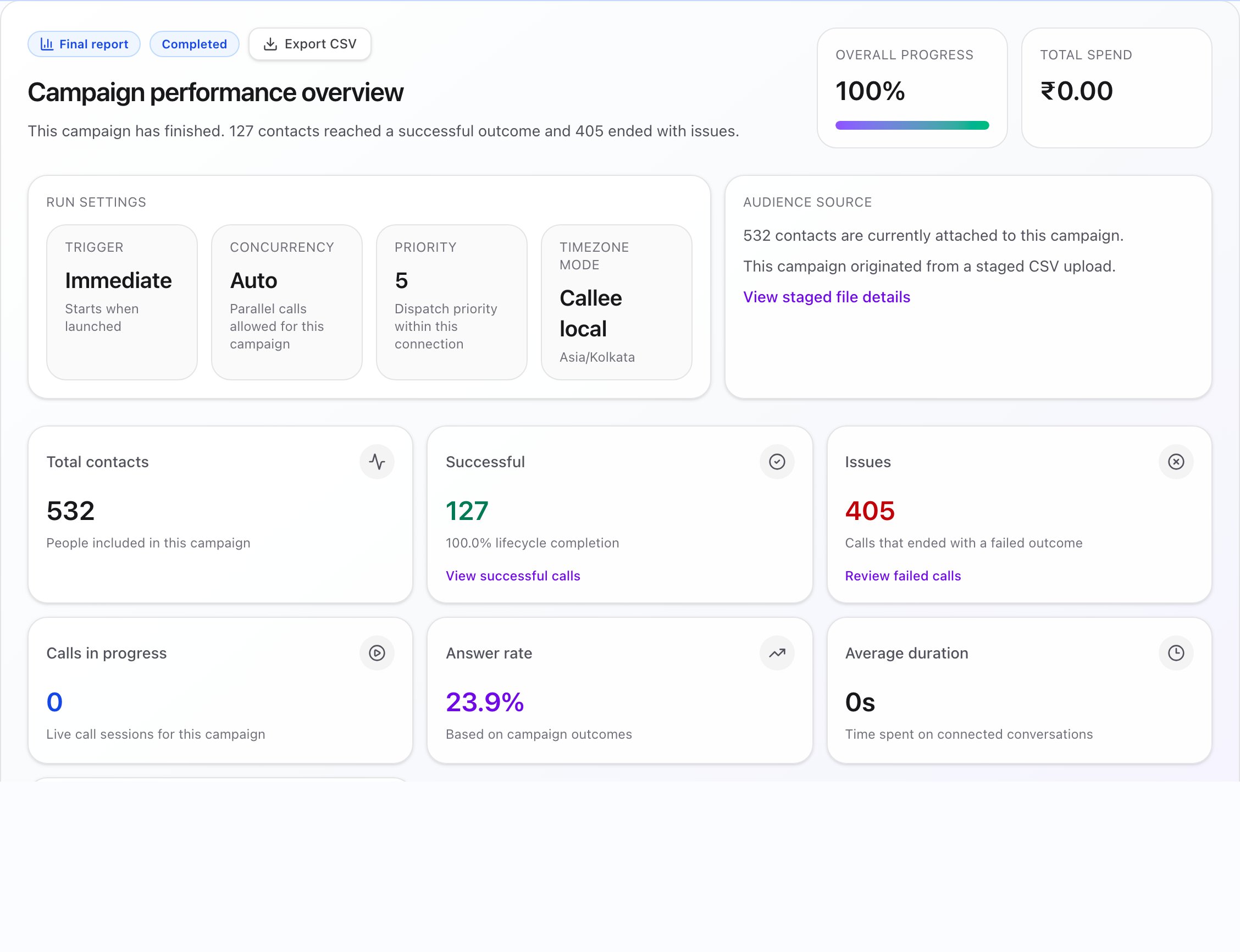
Content depends on what data exists for the campaign. Empty sections are hidden; you will not see every block on every report. Typical top-to-bottom flow (when data is present):- Hero — Campaign performance overview — Status and signal (for example a Final report style badge when completed), Export CSV in the hero, short narrative, Overall progress, Total spend (and AI vs telephony), Run settings (trigger, concurrency, priority, timezone mode), and Audience copy plus a link to the staged CSV section when a CSV was used.
- Overview metric tiles — For example: Total contacts, Successful, Issues, Calls in progress, Answer rate, Average duration, Voicemails, with links to Call logs where the UI offers them.
- Campaign timeline — Stacked areas for successful, issues, in progress, and pending; clicking a point can open call logs for that time window.
- Execution mix — Horizontal bar for task status counts; where linked, you can open call logs for that status.
- Operational details — Agent, from number, retries, concurrency, timezone, and lifecycle times (created, started, finished, paused, cancelled); Calling windows when set; pause or cancel reason when shown.
- Cost and quality — Spend, Average cost per successful call when it applies, Average score when scores exist, Tasks retried and successful-on-retry.
- Common issues — Rows from the failure summary; rows can open failed call logs (with a failure code when the app can show one).
- Disposition highlights — Bar chart; bar actions can open call logs for that disposition.
- Sentiment — Bar chart; actions can open call logs for that sentiment.
- Best time windows — When hourly patterns exist (“when this campaign attempted the most calls”).
- A/B experiment performance — Per-variant stats and View variant calls when A/B was used.
- Conversion funnel — When funnel data exists.
- Call quality — Distributions and related metrics; very detailed latency only appears for roles that are allowed to see it.
- Contact insights — When that payload is present.
- Follow-ups — Linked follow-up rules, follow-up analytics, and the follow-up section (driven by your follow-up configuration).
- Attempt effectiveness — When present.
- Telephony health — When present.
- Conversion tracking — When present.
- Goal achievement — When goals have progress to show.
- Voicemail rate — Rate, counts, and links into voicemail calls when present.
- Talk-to-listen ratio — When present, shown as a percentage of human speaking time with sample size.
- Conversation intelligence summary — When configured prompts have analyzed calls.
- Campaign results — Paginated table: search, sort, and filters from the attributes your tenant exposes; A/B variant column when the campaign had A/B enabled.
Results table
The Campaign results section is a data table with server-driven columns. Use the in-app column headers and filters for the exact set for your account.Operator note: exports serve different audiencesExport PDF is for print or PDF-from-print. Export CSV in the hero is a quick summary download. Export Results is the full results export for spreadsheet-style work.