

Add and edit contacts
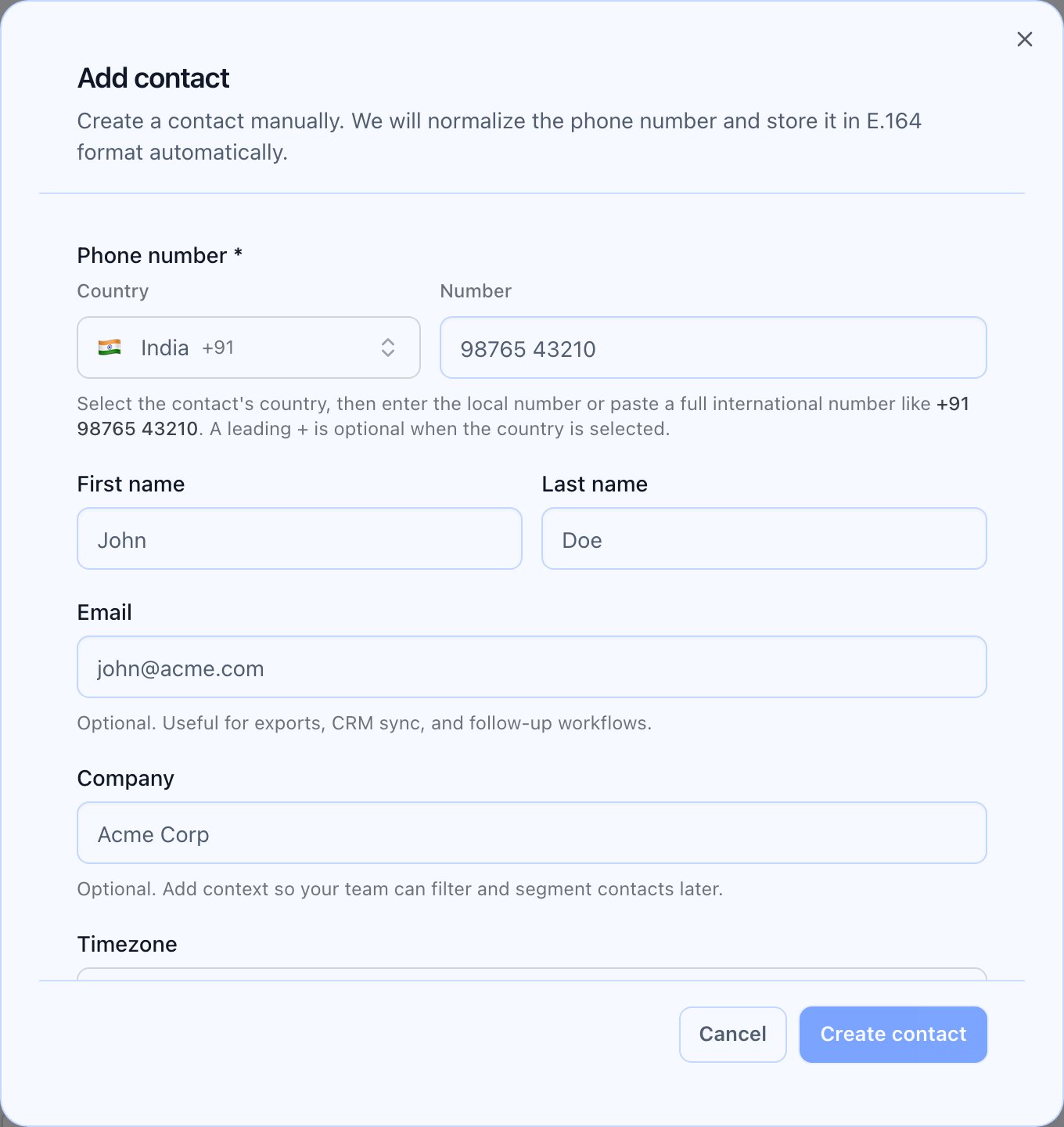
Where the actions live
When you open the add or edit dialog, the app loads your custom field definitions so the right inputs (text, picklists, checkboxes, etc.) appear. On save, only the fields you filled in are sent; empty optional fields are left out where appropriate.
The dialog explains that phone numbers are stored in a standard international (E.164) form on the server. You may see a short preview of how the number will be stored after you type it.
At a glance
- Primary ID — Phone is the anchor for calling and de-duplication; use the country selector and local or full international number.
- Personalize — First name, last name, company, and timezone (searchable list).
- Your schema — Custom fields follow definitions you manage under Custom fields in Contacts; values are stored on the contact record.
- Tags can appear on the contact and in the list, but the basic add/edit dialog does not include full tag management — do not expect to edit tags from that modal alone.

Add a contact (in-app)
- Open Contacts.
- Click Add contact.
- Choose Country and enter the Number (or paste a full international number; a leading + is optional when a country is selected).
- Optionally set first name, last name, email, company, and timezone.
- Fill any custom fields your workspace shows.
- Submit — the list refreshes so you can find the new row.
Edit a contact (in-app)
- Open a contact from the list (the Contact detail page).
- Click Edit contact.
- Update fields and submit — the detail page updates with your changes.
 What the full edit experience should show: the detail header with Do Not Call controls, Edit contact, and any lifecycle actions your role is allowed to use, in one consistent layout.
Field reference
Phone (required)
- Letters and invalid characters are rejected; there is a minimum length check on the digit portion.
- If your number does not start with +, the app sends your country so local numbers can be interpreted correctly.
First name / last name
Optional; used for display and voice personalization.Company
Optional; used for context, filtering, and segmentation.Timezone
Optional; pick from the timezone list. Set it for time-windowed dialing when your program uses it.Custom fields
Defined under Custom fields in Contacts; only fields you have created appear in the dialog. See Custom fields for contacts.Common mistakes
- Editing one row when a CSV is systematically wrong — re-import with a corrected file from Import contacts.
- Leaving timezone empty for cross-region programs that rely on it.
- Creating many custom fields without ownership — see the custom fields guide for how to keep your schema manageable.