

Contact follow-ups
The Follow-ups card on the contact detail page lists follow-ups for that contact, links to the global follow-ups list filtered to this contact, and opens Schedule follow-up in a dialog. The card sits below Call logs in the main column.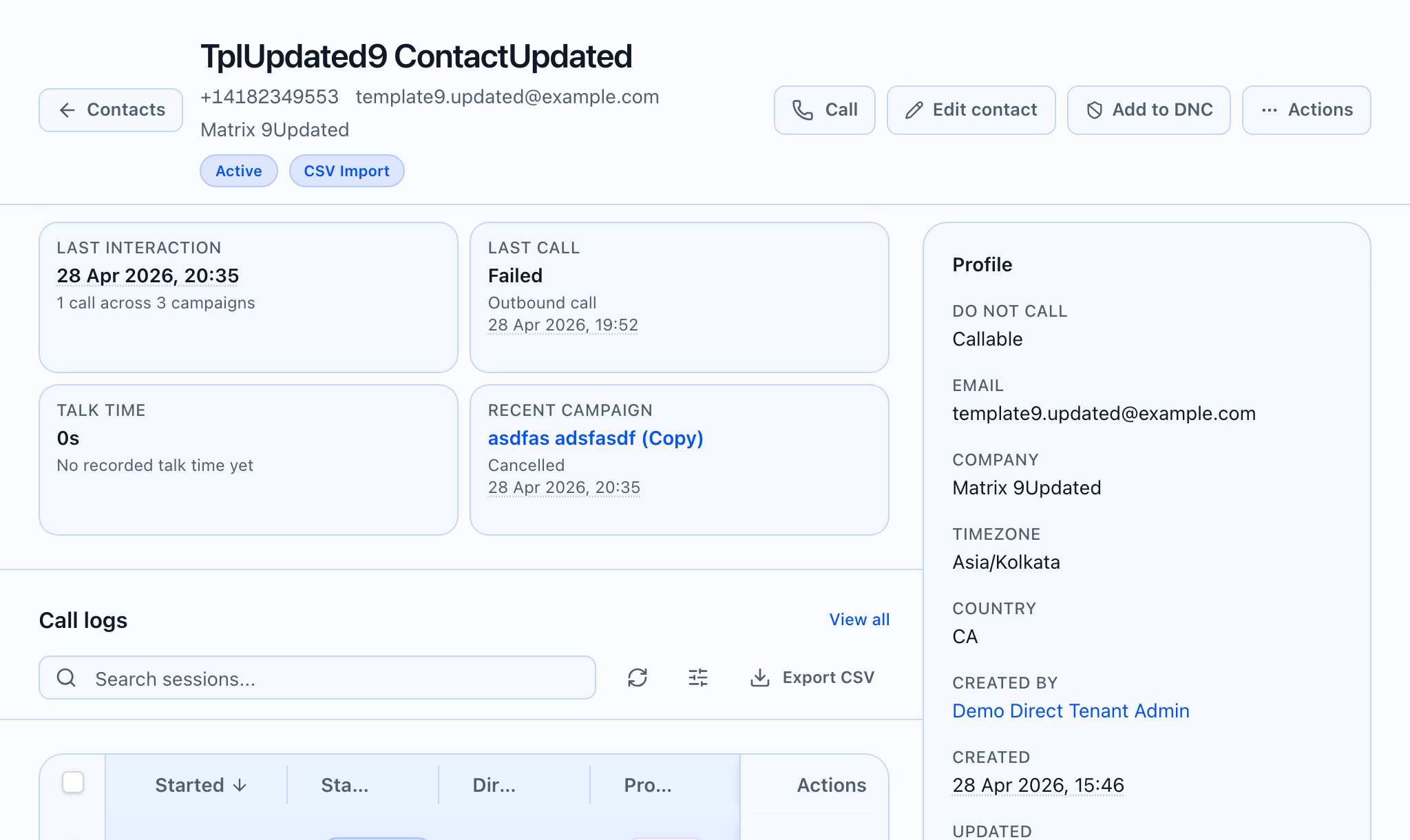


Data loading
- The follow-ups list loads for the open contact.
- When you open Schedule follow-up, the app loads agents so you can pick one.
- Saving creates a new follow-up for this contact and refreshes the list.
Follow-ups table (columns)
Each row shows: Status (with an extra out-of-window outline badge when the customer allowed a call outside the normal window), Type, Scheduled, Agent, Campaign (links to the campaign when one is set), Attempts (current vs max), Source, Actions (View opens that follow-up’s page in the follow-ups area). Status badges use distinct colors for scheduled, queued, in progress, completed, failed, cancelled, expired, snoozed. Empty copy: No follow-ups scheduled for this contact.Schedule follow-up dialog
- Trigger: Schedule follow-up (small outline button in the card header).
- Title: Schedule follow-up
On Schedule, the app sends the type, time, optional agent, priority, max attempts, notes, and whether an out-of-window override applies, and records the follow-up as scheduled manually. The footer has Cancel and Schedule (shows Scheduling… while submitting). On success the dialog closes and the list reloads.