
Import history and error reports
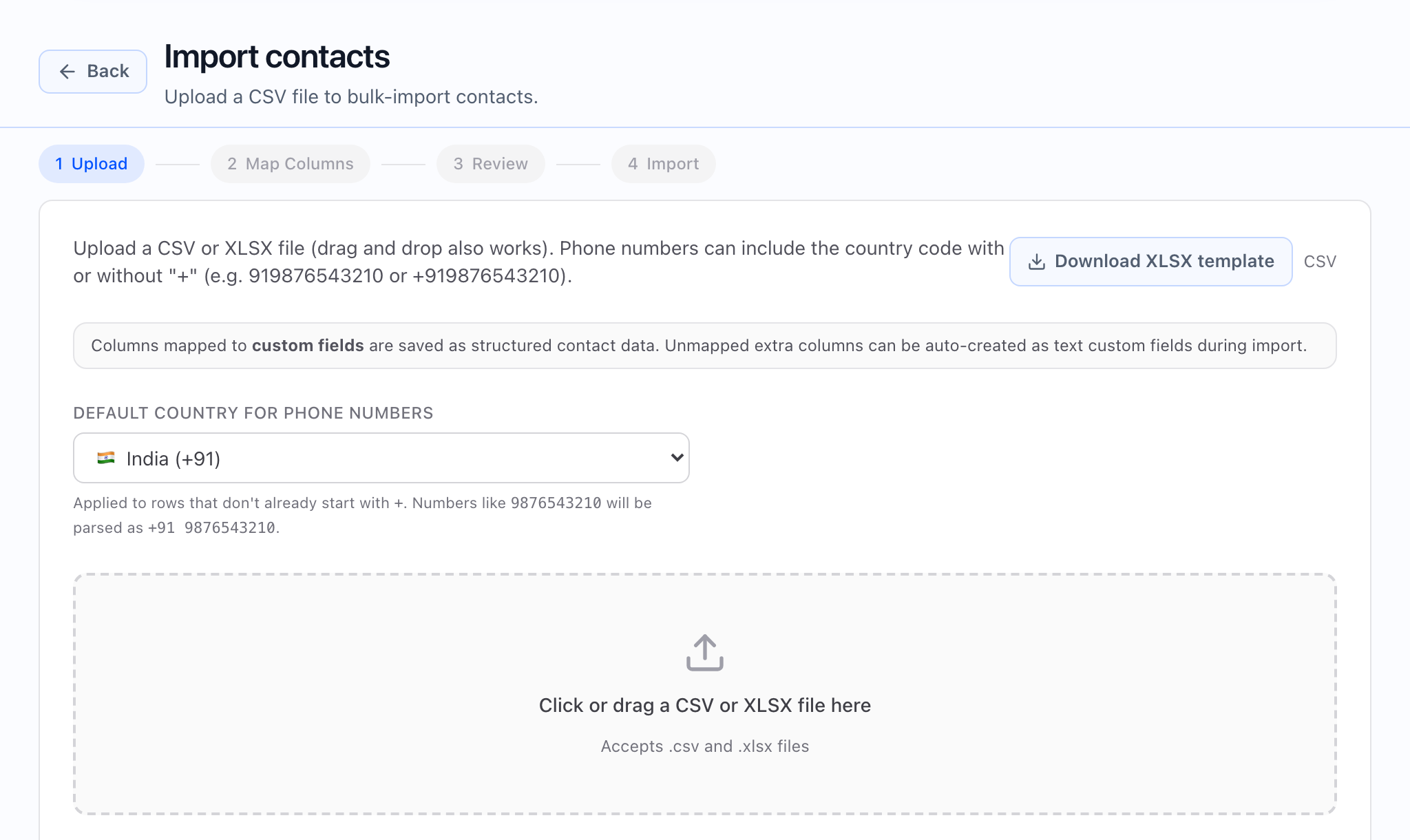
After you start a contact import from a CSV, Callaro records it as a job you can return to. Use Contact imports to see past and in-progress runs, open details, and—when the app provides them—review row-level issues or download a full error report.
Open Contact imports
From Contacts, open More, then choose the option to view Contact imports (import history). The list is the home for all tenant contact CSV imports: queued, running, and finished.

At a glance (list)
The list page is titled Contact imports. You can start a new import from the primary action on that screen (it takes you to the import workflow you already use to upload and map a file).
Each row usually shows the file name (linked to detail), a Status indicator, Progress (how many rows are processed out of the total, often with a bar), a short Result line with counts such as created, updated, and skipped, and when the job was Created. Click the file name to open the import detail.
Import detail: status and refresh
The detail view shows the file, an import number or identifier, the same status, and a note that the page can refresh on its own while the job is still active. When processing has finished, that messaging switches to a completed style.
- Until the job is done, treat downstream lists and segments as potentially incomplete for that file’s data.
- A “completed” style status means the job finished, but you should still read Preview errors and use Download errors when offered—some rows may have been skipped or rejected even when the run completes.
Preview errors vs. downloaded error report
- Preview errors is a compact on-page list (often by row) so you can see common problems at a glance. It may be empty if no row-level issues were recorded.
- Download errors appears when a full error report is available for that import. Use it when you need to work through many issues in a spreadsheet or share the list with your team. For very large lists, the app may prepare the file in the background; wait for the control to become available or follow any on-screen status.
 ## When an import fails
- Open the import detail and read the prominent error area if the app shows one, plus Preview errors.
- Use Download errors when the button is there for bulk triage.
- Fix the source file and start a new run with New import from the same area.
Import details (file size, start and end times, and similar) helps you audit what ran and when. Pair that with the list Result column for a quick check without opening every file.
Relating to Export history
Contact imports and Export history are separate: imports bring contacts in from CSV; export history (from Contacts → More) tracks large or asynchronous contact exports. See Contact exports for the export side.