
Contact detail
What the video should show: Sign in to a tenant with Contacts (Pro) enabled. Open Contacts, then a contact. In order: the page header and actions, the four summary tiles, Call logs (optionally show search or a column sort), Contact follow-ups and Memory cards, then the sidebar Profile, Labels (if any), and Additional fields (if any). Use chapters. 1440×900, redact PII.
The contact detail screen is a section-based workspace (not a tabbed “CRM record” layout). You reach it from the contacts list by opening a specific contact.
Full page (static)
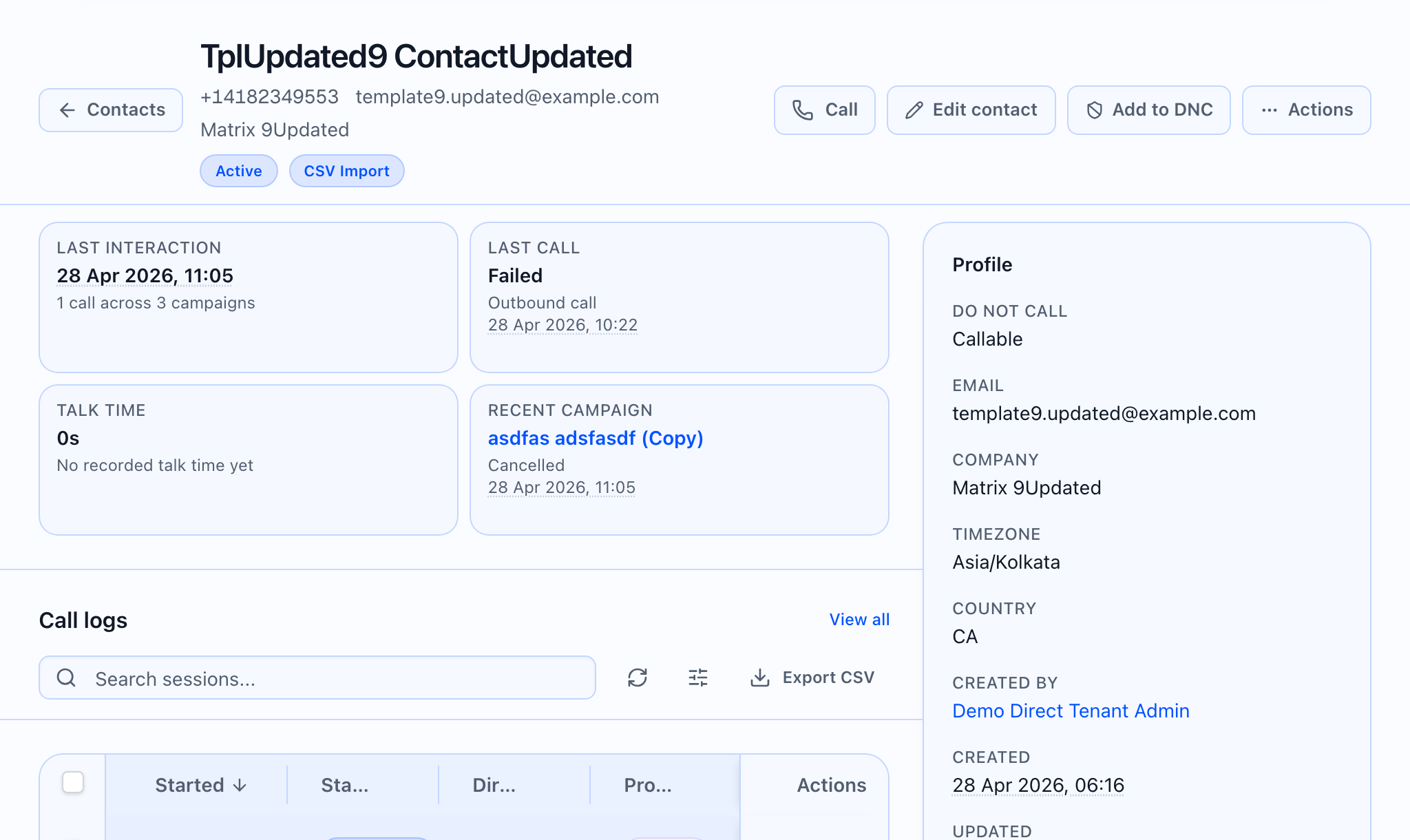
What the static image should show: A single still (or tasteful top+bottom pair) that shows the full layout: Back to Contacts, title row, 2×2 tiles, Call logs with embedded table, Follow-ups + Memory, and Profile in the sidebar.
Page header, subtitle, and badges
The title uses the first available of: the contact’s full name, else their phone number, else the contact id you opened.
The subtitle line shows (when present): phone (monospace), email, company.
Below that, status and source appear as humanized badges (as returned for the contact).
What the static image should show: A tight crop of the page header with Contacts back link, the resolved title, mono phone, optional email/company, and the status + source badges.
Header actions (what appears and when)
| Control | Shown when |
|---|---|
| Call | You have a tenant in session, the contact is not on DNC, and the contact is active. |
| Edit | The contact is not in a deleted state that blocks editing. |
| DNC | Same: editing/DNC are available for normal contacts. |
| Lifecycle (Actions menu) | Always in the action row for a loaded contact; Archive, GDPR erase, and Hard delete inside the menu depend on your role (superadmin, platform admin, or tenant admin for the destructive options) and per-contact permissions. |
If you are a platform user with no tenant selected, the Call action does not show, because there is no tenant context to place a manual call.
What the GIF should show (pick one): (A) User clicks Call, dialog opens with the expected phone/name context, then closes without placing a real call to production numbers if needed. (B) User toggles DNC and the header/sidebar DNC state updates. (C) User opens Edit and the edit dialog is visible.
See Manual calling and Contact lifecycle actions.
Not found and errors
- Not found: If the contact id does not resolve (no contact, no error payload), the page shows Not found and “Contact not found.” with a minimal header.
- Server error: A prominent Alert shows the error message at the top when the load fails.
What the static image should show (optional): The Not found alert and Back to Contacts — only if you can capture safely without confusing production readers.
Summary tiles (2×2)
Four tiles, each with label, primary value, and a helper line when data exists:
- Last interaction — time of last activity or “No activity yet”. Helper: counts of calls and campaigns (from the summary on the contact when available).
- Last call — last outcome or status, humanized. Helper: direction (e.g. “outbound call”) and last call time when set.
- Talk time — total talk time with a short helper about connected sessions.
- Recent campaign — links to the campaign when one is linked; helper shows disposition/task state and last activity when present.
What the static image should show: The 2×2 grid with at least one Recent campaign link and non-empty Last call / Talk time if available on a demo contact.
Call logs (embedded)
This block scrolls with the page. It is not “one hero image for the whole KB.”
- Heading: “Call logs” and a View all link.
- Table: The same call-logs table used elsewhere, loaded for this contact only (newest sessions first, paginated, typically 30 per page unless you changed list parameters from a deep link).
- View all takes you to the full Call logs list with this contact’s filter still applied, and a return path labeled “Back to contact” so you can return here.
- Filters: On this page section the filter button is not shown; use the full Call Logs list when you need broader filters.
- Debug / superadmin columns, if you have access, match the global Call Logs list; Pro gating for some columns still applies when relevant.
What the static image should show: Section header, several rows, pagination/footer if visible.
What the GIF should show: The handoff: contact embed → full Call logs with contact filter → return path to the same contact. Keep the loop under ~10s.
For deep behavior of the two-pane call screen, see Call detail start here.
Follow-ups and memory
Follow-ups and Memory & AI insights sit below a divider, still in the main column.
What the static image should show: Both cards; empty states are acceptable if the demo contact has no data — mention that in the alt text for design.
Sidebar: Profile
Profile lists (when applicable):
- Do not call — “On DNC” with optional reason, or “Callable”
- Email, Company (if set)
- Timezone, Country
- Created by — link to that user’s profile when a creator is recorded, else plain text
- Created and Updated (formatted in your timezone)
What the static image should show: The Profile card with DNC state and at least Created visible.
Sidebar: Labels
Labels appears only when the contact has tags. Up to eight tags show as badges; if there are more, a badge shows +N more.
What the static image should show: Either a moderate tag list or a contact with more than eight tags to document the overflow badge (preferred for training).
Sidebar: Additional fields
Additional fields lists the contact’s custom values, excluding internal fields used for last campaign signal (last campaign time, id, and outcome on the contact record). Where definitions exist, labels are friendly; values are formatted (including dates and status-like values).
If there is nothing to show, the section is omitted (not an empty box).
What the static image should show: A definition list with readable labels and representative values (dates, text, humanized status).
Pro and platform notes
- Contacts in the app shell require the Pro product; if your tenant is not on Pro, Contacts may be absent from navigation — this article assumes a Pro tenant.
- Partner admin and superadmin flows can open contacts in cross-tenant contexts; some actions (e.g. Call) still require a tenant in session, as for manual calling above.