
Contact follow-ups
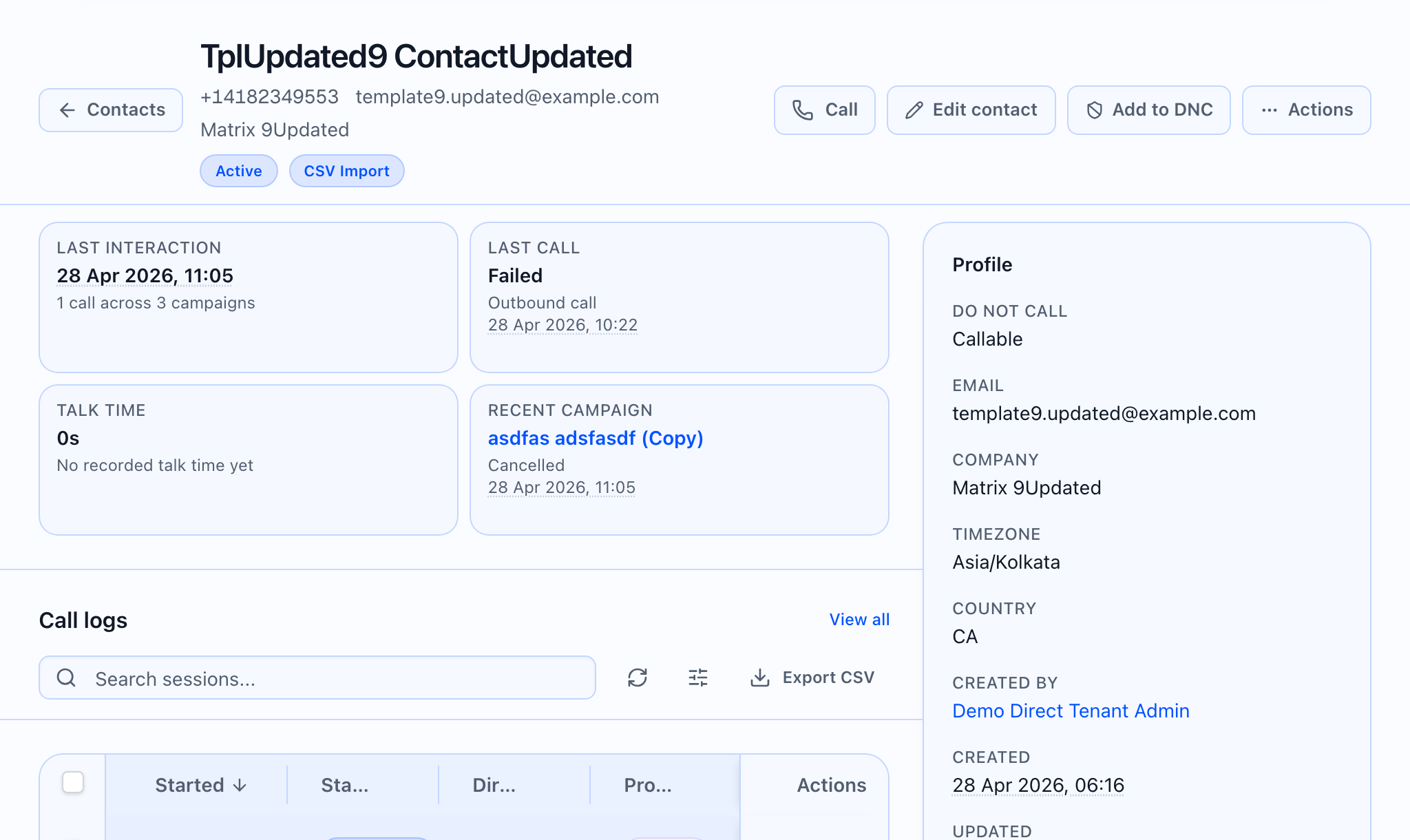
The Follow-ups card on the contact detail page lists follow-ups for that contact, links to the global follow-ups list filtered to this contact, and opens Schedule follow-up in a dialog. The card sits below Call logs in the main column.
 ## Data loading
- The follow-ups list loads for the open contact.
- When you open Schedule follow-up, the app loads agents so you can pick one.
- Saving creates a new follow-up for this contact and refreshes the list.
Follow-ups table (columns)
Each row shows: Status (with an extra out-of-window outline badge when the customer allowed a call outside the normal window), Type, Scheduled, Agent, Campaign (links to the campaign when one is set), Attempts (current vs max), Source, Actions (View opens that follow-up’s page in the follow-ups area).
Status badges use distinct colors for scheduled, queued, in progress, completed, failed, cancelled, expired, snoozed.
Empty copy: No follow-ups scheduled for this contact.
Schedule follow-up dialog
- Trigger: Schedule follow-up (small outline button in the card header).
- Title: Schedule follow-up
Fields:
| UI label | Behavior |
|---|---|
| Type | Call, SMS, or webhook (default: call). |
| Scheduled at | Date and time; default is about one hour ahead. |
| Agent | Choose an agent, or Inherit from source to leave the agent unset so routing can use defaults. |
| Priority | Low, normal, high, or urgent (default: normal). |
| Max attempts | How many attempts to allow (default: 3). |
| Allow out-of-window (customer override) | When checked, the follow-up may run outside the usual calling window; the list shows an out-of-window marker on that row. When unchecked, normal window rules apply. |
| Notes | Optional notes on the follow-up. |
On Schedule, the app sends the type, time, optional agent, priority, max attempts, notes, and whether an out-of-window override applies, and records the follow-up as scheduled manually. The footer has Cancel and Schedule (shows Scheduling… while submitting). On success the dialog closes and the list reloads.
When **Allow out-of-window (customer override)** is checked, the UI shows an **out-of-window** badge on that follow-up’s status. Use overrides only when policy allows.
View all
View all opens the follow-ups list with a filter so only this contact’s follow-ups appear (same as choosing that contact in the list filters on the follow-ups page).