
Do Not Call (DNC)
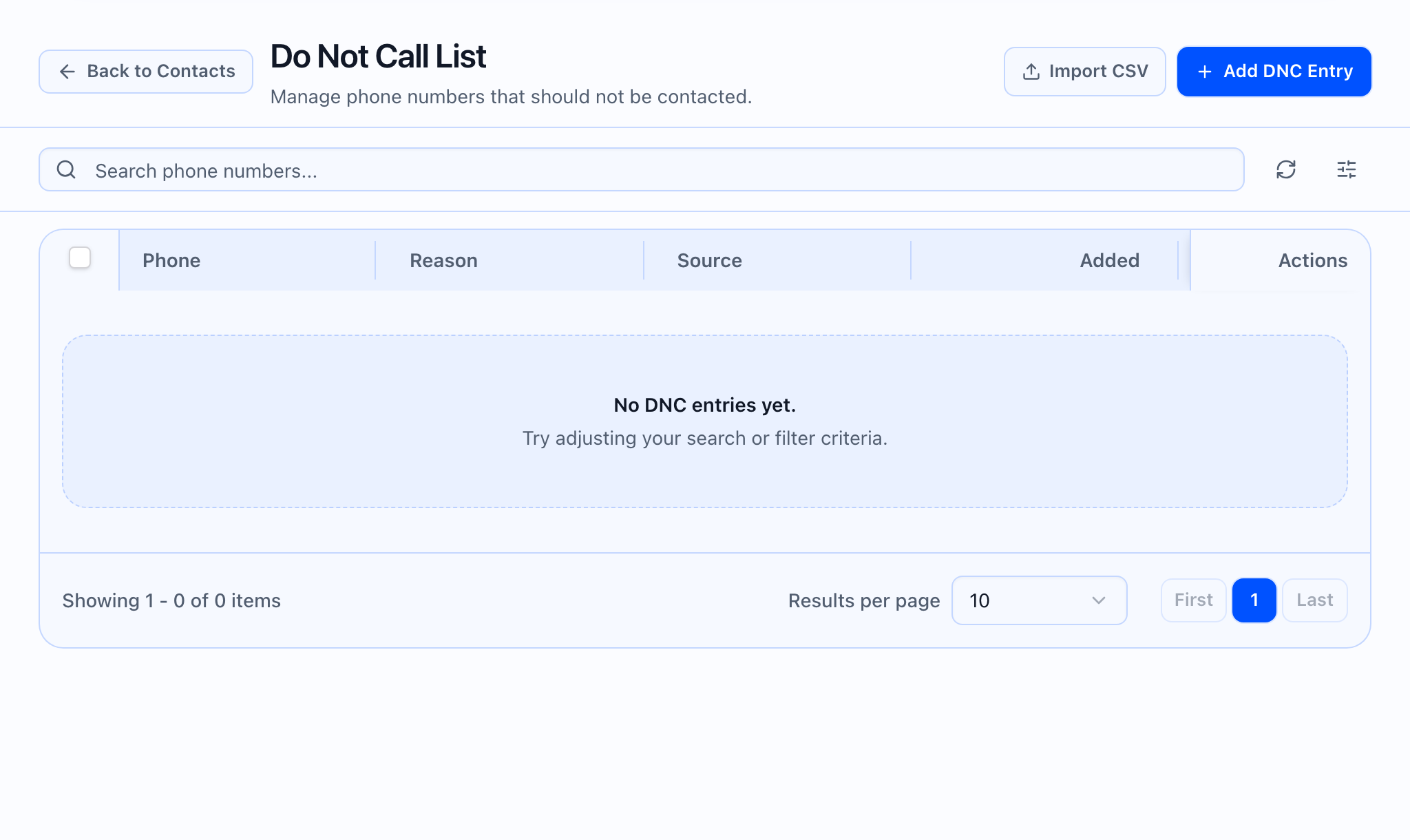
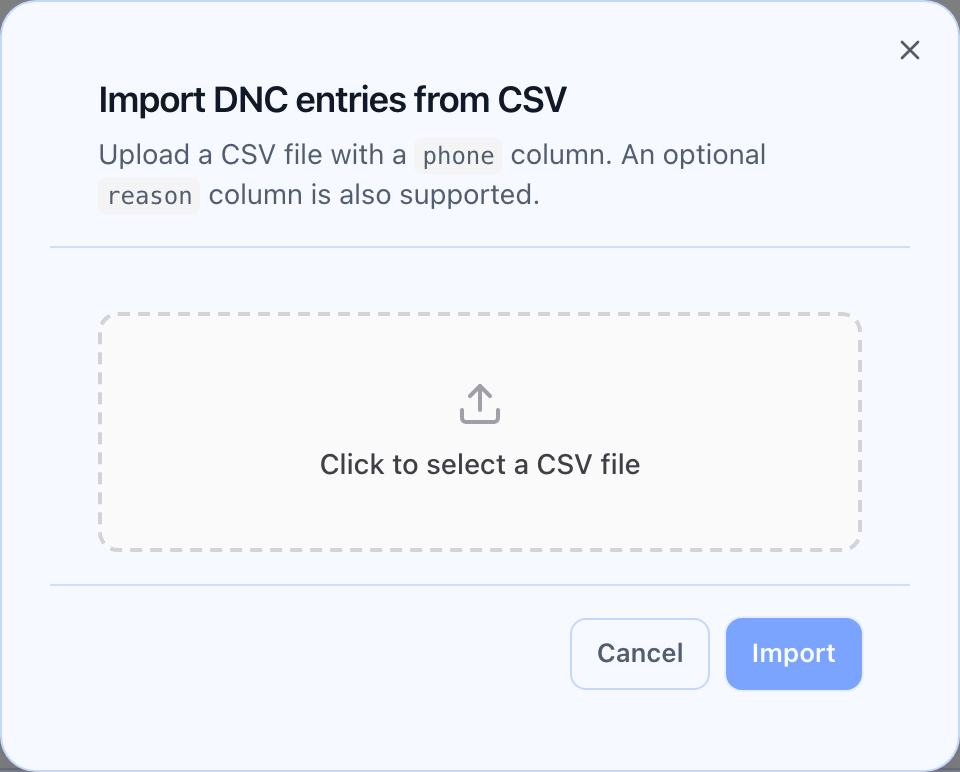
The Do Not Call list is your workspace-wide set of phone numbers you must not dial for outbound. Open it from the More menu on Contacts (e.g. View DNC list). The page should show a header, Add DNC and Import CSV, plus a table with search, filters, and reasons where you have recorded them.
DNC rules apply to outbound work across the product. You can manage them from this global list and from each Contact detail page when you need to block or unblock a single number.
At a glance
| Surface | What you do |
|---|---|
| DNC list | Search, sort, and filter the blocked numbers; add or import entries; remove entries when your policy allows. |
| From Contacts | More → View DNC list to open the DNC page. |
| On a contact | On the contact’s detail page, use Add to DNC or Remove from DNC when the person is already linked to a DNC row. |
| Bulk on the list | On Contacts, select rows and use the bulk Add to DNC or Remove from DNC actions when you need to match many people at once. |
What the contact-level control should show: a clear Add to DNC or Remove from DNC action with a confirmation when needed, then the page updates so the contact’s DNC state matches what you chose.
What you can do on the DNC list
- Add one number — open Add DNC and enter the phone (and a reason, if you use that field for audit).
- Remove an entry — use the row action on the DNC table when you are allowed to lift a block (follow your internal policy).
- Import a CSV — use Import CSV; the dialog explains required and optional columns (typically a phone column, and an optional reason column if you track why someone was added).
- Bulk add or remove from Contacts — on the main Contacts list, select people (including “select all” across pages when offered) and run Add to DNC or Remove from DNC from the bulk bar. That applies to the current search and filters when you are matching a whole cohort.
Some bulk actions may return immediately; others can take a moment and then refresh the table so you see up-to-date state.
On a contact (detail)
From Contact detail, the Do Not Call control knows whether the current phone is already on the list and, when it is, which list entry it maps to. Add to DNC uses the contact’s phone in standard form; Remove from DNC appears when a matching entry exists and your role is allowed to remove it.
Import DNC from CSV
On the DNC page, choose Import CSV and follow the on-screen column requirements. Upload the file; the app validates and reports any rows that could not be processed.
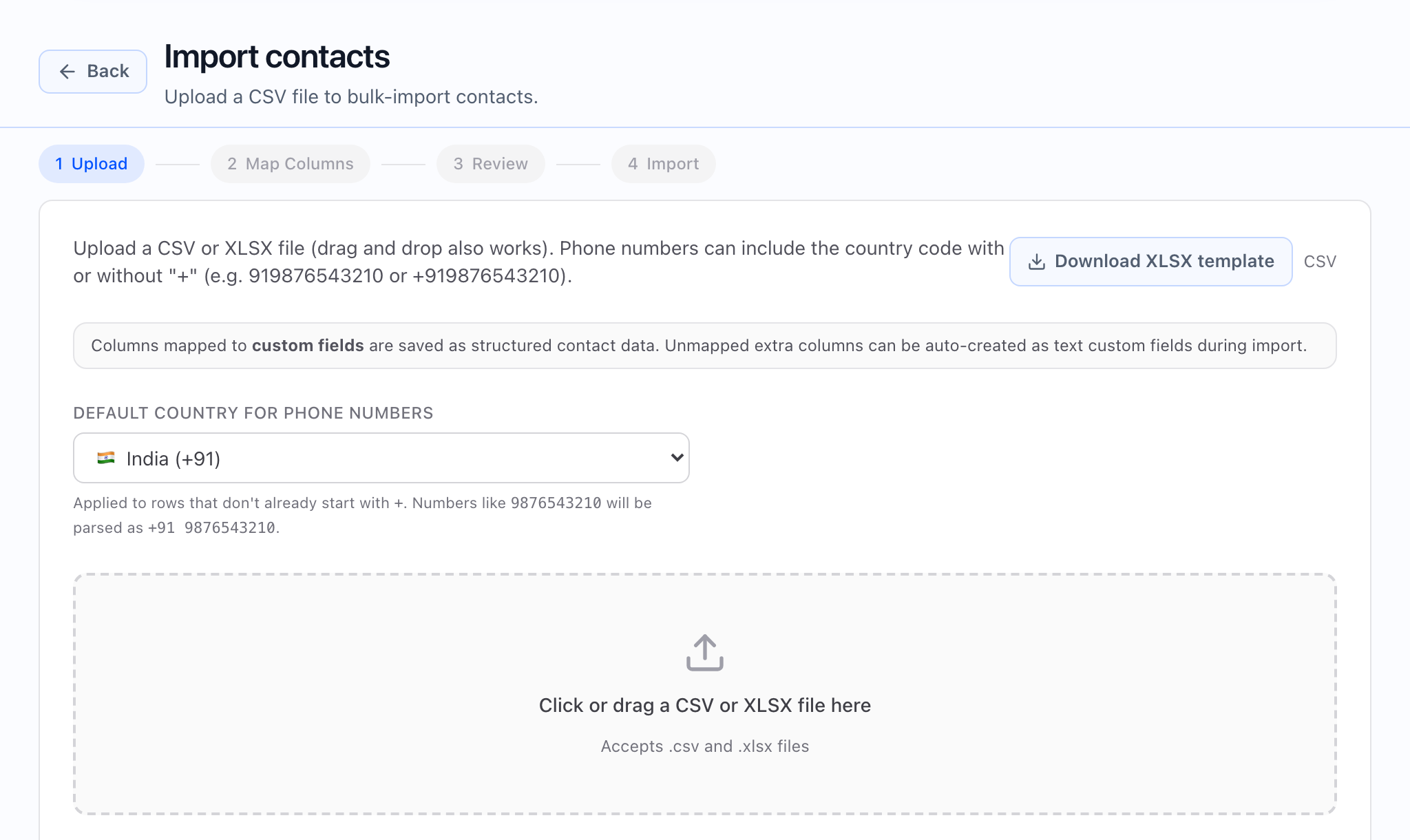 What bulk DNC from Contacts should show: you can select specific rows or use select-all, then the bulk Add to DNC or Remove from DNC actions with the same search and filters you were using, so a filtered cohort is handled in one pass.
Treat the DNC list and contact toggles as part of your compliance workflow. Removing entries should follow internal policy, not only UI convenience.
Related reading
- Contact detail page — per-contact DNC and call history.
- Contacts list, filters, and segments — use segments to target a cohort, then apply consistent bulk DNC where policy allows.
- Launch checklist — verify audience and compliance before go-live.