
Customising your call script (agent editor)
In the app, the “script” is the Prompt & Goals step of the Create agent / Edit agent wizard.
- Create: Start from Agents and create a new agent (the app’s Create agent entry).
- Edit: Open an agent from Agents, then choose Edit agent; you can jump straight to Prompt & Goals (Step 4) from the app when available (e.g. step query in the URL).
The full wizard has nine steps: Basics → Voice → Variables & Pre-Call → Prompt & Goals → Data Extraction → User Defined tools → Default tools → Advanced → Publish. The intro copy on create says you build the agent with prompt, voice, tools, and webhooks—all of that lives in the same flow.
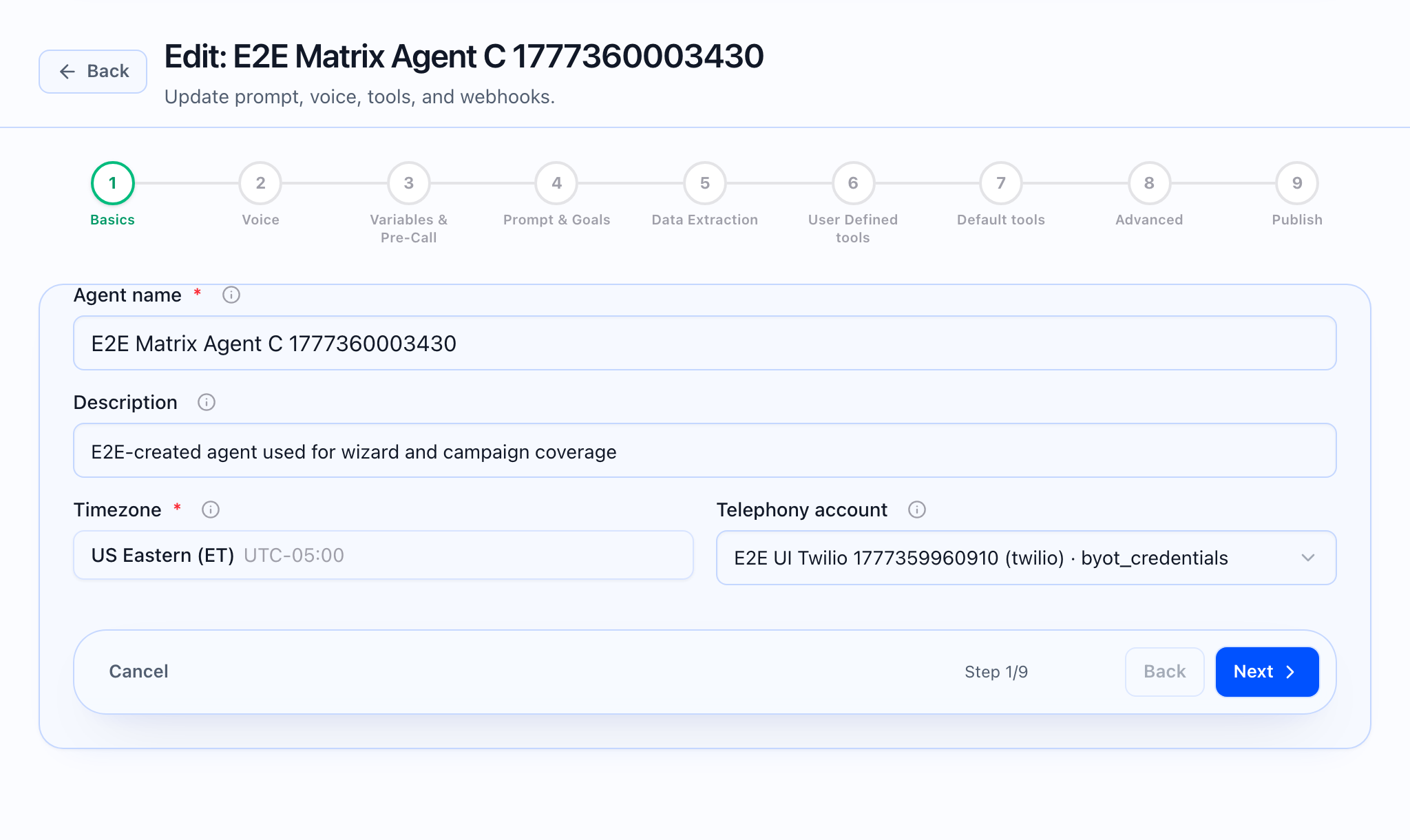
What the static should show: Edit agent on 4 Prompt & Goals with the stepper visible, the Greetings split (inbound / outbound), and the first markdown sections (e.g. Identity).
What to edit for “the script”
In Step 4 — Prompt & Goals, the product merges your inputs into the runtime system prompt. The main blocks you own here are:
- Greeting text and Follow-up question for inbound (someone calls you) and outbound (you call them), separately.
- Identity (who the agent is).
- Knowledge base either as custom text in the card or, when your plan allows, a linked knowledge base (published from the app’s Knowledge base area).
- Call control & flow, Objection Handling, Discovery & Qualification, Close / CTA, Guardrails & Do’s and Don’ts.
- Optional Tenant platform rules pack (managed under Platform rules); optional Custom instructions and Style addendum (collapsed under “Advanced” on the same step).
- Conversation goals (numbered one-line goals, add/remove rows).
A running Total prompt counter (all sections + goals + custom instructions) is enforced against a combined character ceiling (40,000 characters, per product limits). You cannot advance or save if you are over the limit; shorten any of the named sections or goals until the counter is within range.
Greetings may use {{variable}} placeholders for variables you define in Step 3 — Variables & Pre-Call; {{caller_name}} is called out in the UI as auto-filled from pre-call data when available.
What the GIF should show: Toggling between inbound and outbound greeting fields, or expanding Advanced: Custom Instructions & Style Addendum and saving.
After you save
- From Agents, open the agent: the page shows a config summary (model, language, tools count, follow-ups, webhooks, knowledge link) and Version history (snapshots on save/publish; restore loads a version as a new draft). Use Edit agent to return to the wizard.
- Test call from the agent header links to the browser test call with tenant and agent in the query string.
What the video should show: End-to-end: open an agent from Agents → Prompt & Goals → adjust a section → Publish (step 9) or save path your team uses.