
Adding phone numbers
In the app, phone numbers are managed under Connectivity → Phone numbers. The list subtitle states they are reference numbers (Twilio-managed or BYOT) and that routing comes from your CRM/telephony layer; associations support UX and reporting.
What the static should show: The Phone numbers page with the Phone numbers header, Search numbers..., optional filters when attributes exist, table columns (Number, Status, Inbound Agent, Provider, Name, Created), and primary Add number (when your role can write the workspace).
List page
- Tenant required: Without a tenant selected (for roles that need one), you see Select a tenant to view and manage phone numbers.
- Superadmin: An extra Tenant column appears when listing across tenants.
- Status column: Renders a badge from API status (success style when active, otherwise neutral). A Twilio outline badge appears for platform-managed numbers.
- Number cells link to the phone number detail page (monospace display).
- Inbound Agent shows the agent name or Unassigned.
- Provider shows telephony connection name and provider, or — if missing.
- Pagination and search sync via the table’s query params (page, per_page, search, plus structured filters when enabled).
What the GIF should show: Opening Add number, choosing Purchase from Twilio or Add manually, completing configure, and landing on the new number’s detail page.
Add flow
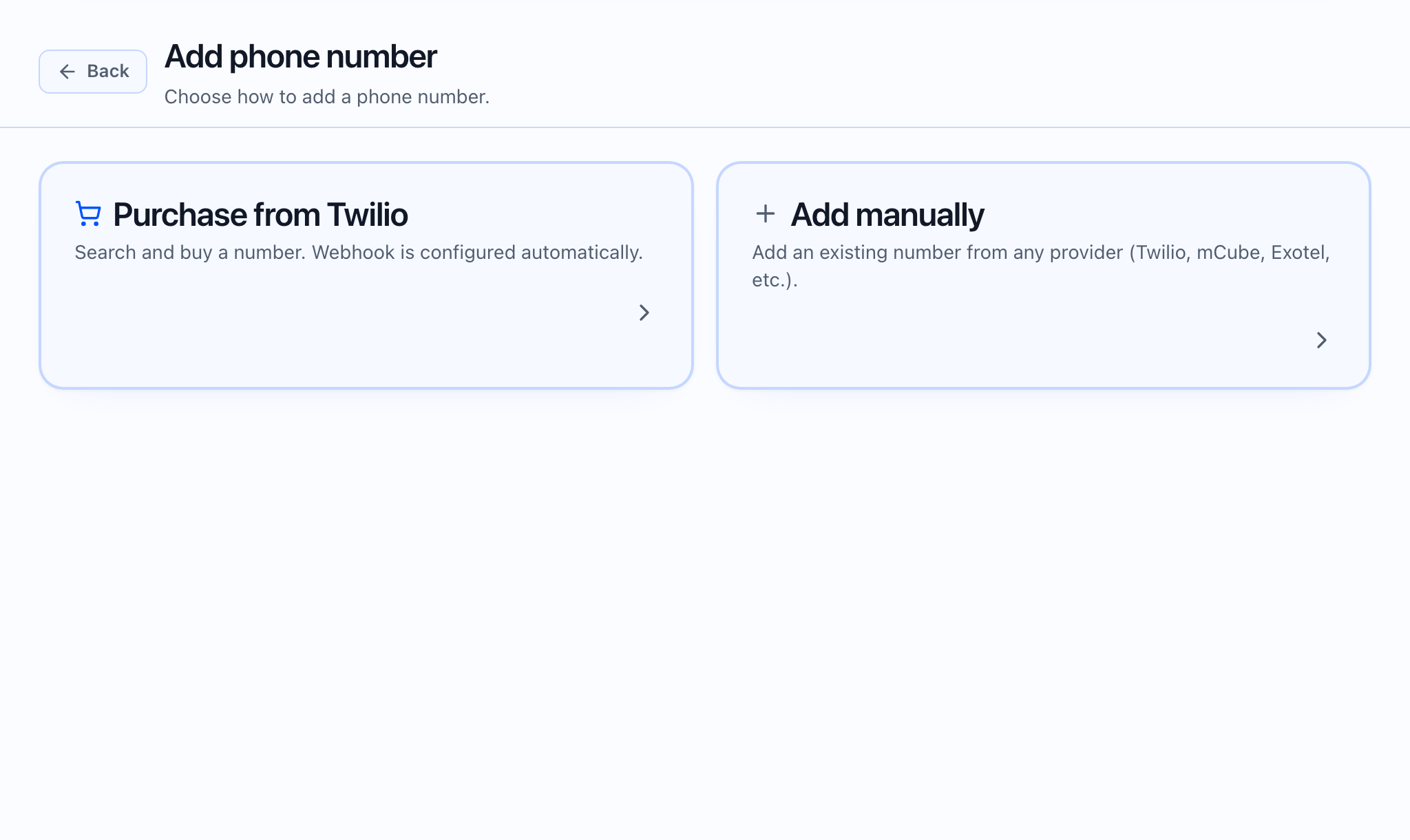
Header: Add phone number (or Number added on success). Back to the list is available from the first step and the completion step.
Step 1 — Choose source
- Purchase from Twilio — Shown only if an active telephony connection with provider Twilio exists. Card title Purchase from Twilio; description mentions search/buy and automatic webhook configuration.
- Add manually — Always available. Description: register an existing number from any provider (Twilio, mCube, Exotel, etc.).
- If Twilio is not connected: helper text explains you must add a Twilio telephony connection first.
Twilio path — Search (sub-step 1 of 3)
Card Search available numbers with:
- Country and Number type (options depend on loaded countries from the add-number flow).
- Optional Area code and Contains filters.
- Search available (available tab) or Load my Twilio numbers (owned tab).
- Tabs: Available to purchase | In your Twilio account (owned list supports Refresh; rows show Already imported vs Not in app yet).
- Select a row, then Continue with {number}.
Confirm dialogs:
- Purchase: warns of Twilio charges and webhook configuration.
- Import owned: warns that voice webhook and status callback will be updated and may break other integrations.
Manual path (sub-step 1 of 2)
Card Add number manually:
- Phone number (E.164) (placeholder +14155551212 style).
- Telephony connection (active connections only).
- Next: Configure number is disabled until both E.164 and connection are set.
Configure number (assign step)
Card Configure number with context-specific description (purchase vs import vs manual).
- Twilio flows show an alert Twilio webhook configuration (Voice URL and Status Callback set automatically; import may replace existing integrations).
- Label (name) — optional.
- Inbound call agent — optional; No agent (assign later) / active agents from the agent list.
- Allowed inbound countries / Allowed outbound countries — multi-select; empty means no restriction (helper text on screen).
- Primary action: Purchase & configure, Import & configure, or Add number (manual add).
- Vendor-specific fields (e.g. mCube executive number) appear for manual BYOT flows when the vendor exposes extra phone fields.
Done
Success card Phone number added with View number, Go to campaigns, and Add another (resets the wizard).
 What the video should show: Full path from list → Add number → manual registration with connection + agent → View number on detail.
Detail page
The detail view includes:
- Header card: E.164, status badge, Twilio-managed vs BYOT badge, label/provider/country/type line.
- Activate / Deactivate, Release number (Twilio-managed only, destructive confirm), Re-sync from Twilio when a Twilio SID exists.
- Sections with per-section Save: Label, Inbound call agent, Allowed inbound countries, Allowed outbound countries, Configuration (telephony connection; read-only text for platform-managed purchased numbers), optional provider fields, webhook URL copy when exposed, Configure webhooks on {provider} when the vendor supports webhook config in-app.
- Campaign Health table when campaign number health is present (campaign link, pool status, attempts, answered, answer rate, weight).
Edit screen
The same underlying detail experience is used after an access check; the header may read Edit phone number with a back link to the detail.
Common mistakes
- No Twilio purchase card — Add an active Twilio telephony connection first.
- Import breaks another app — The import confirm dialog states webhooks will change; read it before confirming.
- Wrong workspace — Tenant must match; permission errors show Resource not available with a way back to the list.