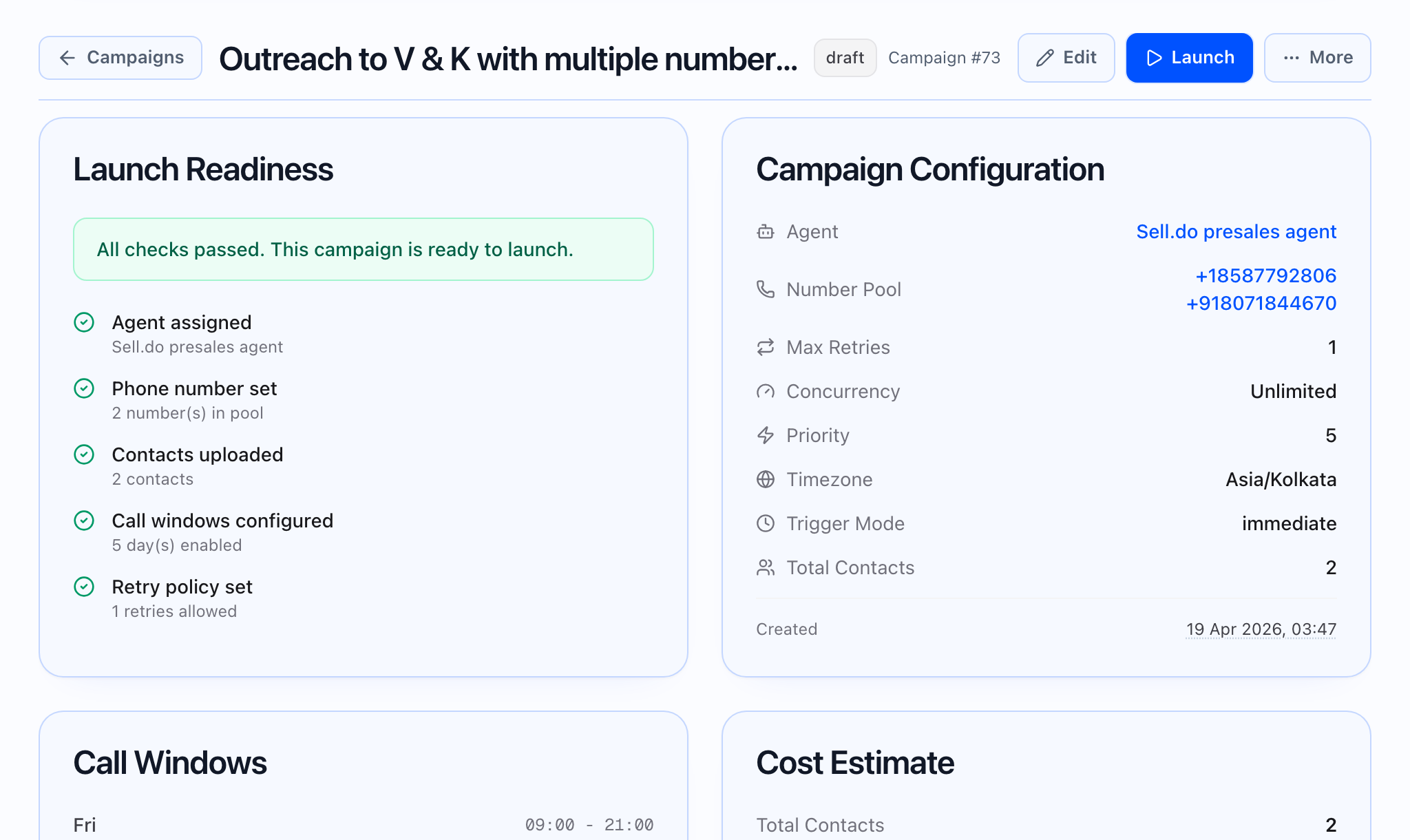
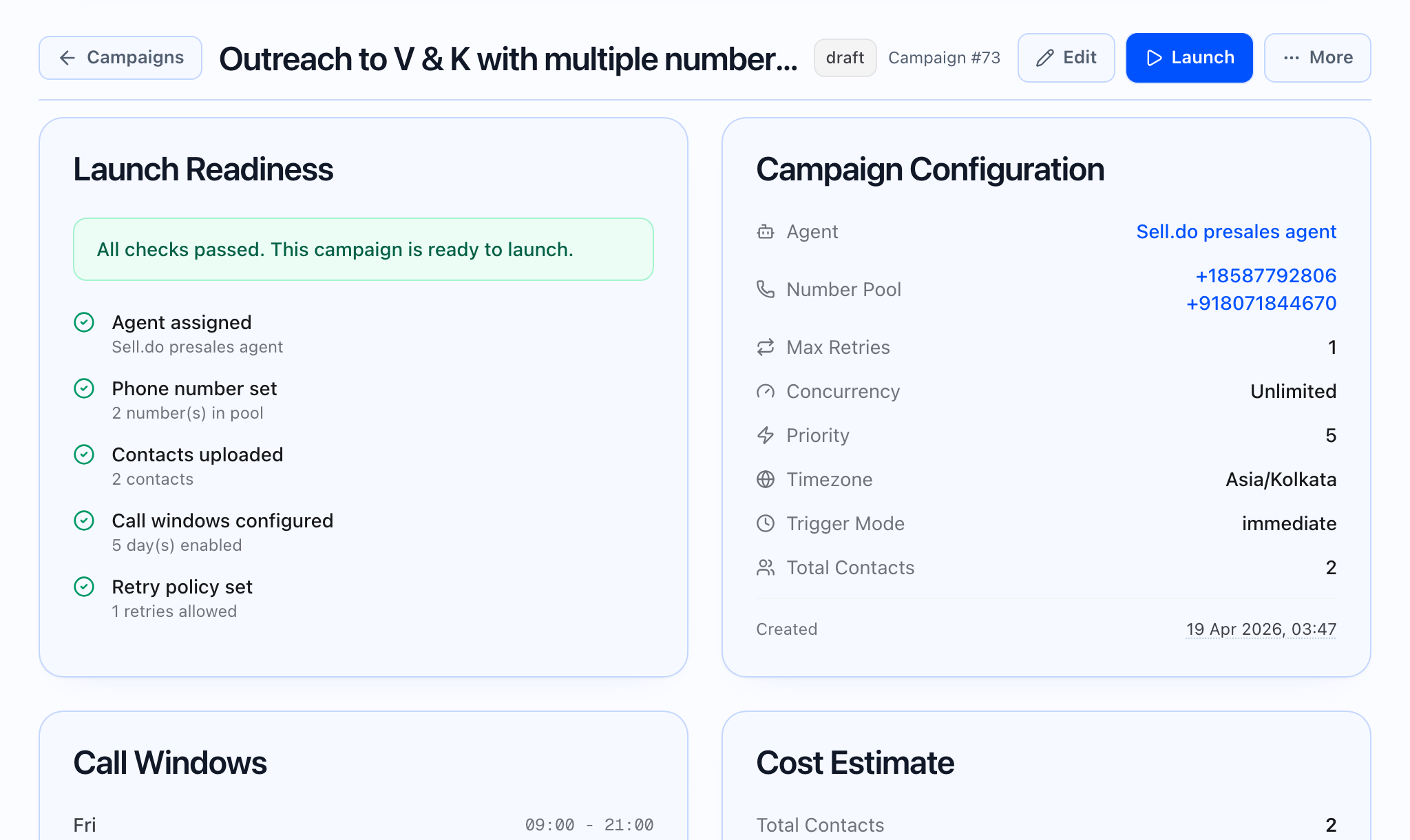
Campaign detail by lifecycle (draft vs running vs ended)
Open any campaign from Campaigns — the screen is not one static layout. The app picks a layout from the campaign’s status:
| Layout (what you see) | Statuses it applies to |
|---|---|
| Draft | Draft |
| Active (live run) | Scheduled, running, paused |
| Ended (report-style) | Finished states — completed, failed, cancelled, and any other terminal state your workspace uses |
So one place in the app (the campaign you opened) changes major sections as the campaign moves through its lifecycle. You can also use the Overview, Tasks, and Report areas when the app shows them; the main organization is still by status, not a generic static page.
Access, tenant, and roles
- From Campaigns, open a campaign; use back to return to the list.
- Tenant: If no tenant is selected, you may see a prompt to choose a tenant from the header; full data loads after selection.
- Latency metrics (where shown on analytics or report): some organizations only show certain latency or telephony deep metrics to administrator or support roles. Others may see the same page with fewer widgets.
At a glance — what each mode shows
- Draft — Draft stage: readiness, configuration recap, and audience preview when preview data is available. Edit opens the campaign builder (same flow as creating a campaign, loaded for this campaign). A dedicated “edit” entry in the app may still send you through that builder.
- Active — Running stage: live progress, dispatch health, the task list, and automatic refresh while the campaign is scheduled, running, or paused. Refresh in the header loads a full snapshot.
- Ended — Completed stage: report-style blocks (funnel, analysis, results tables, print or PDF, etc. — see reporting guides). Failed and cancelled campaigns use this same ended layout, not the draft or running layout.
Tabs: Overview, Tasks, Report
The campaign page can focus Overview, Tasks, or Report depending on what the app supports for that campaign. Use these when you have a bookmark or alert that points at a specific section; the same lifecycle-appropriate content appears underneath.
Header actions (non-draft)
For active and ended campaigns, the header can show Refresh (not for draft) and a menu of actions: start, pause, cancel, clone into a new campaign, export, Save template, and similar — exact items depend on status.
After the main content
The page can also show:
- CSV upload follow-up when a staged upload is linked to the campaign.
- Number pool health when the campaign uses multiple from numbers: per-number attempt and answer stats and links to each phone number record.
These appear below the main draft, run, or report block for the same campaign.
Operator note: “tabs” vs lifecycle
- Prefer asking “What status is this campaign?” — that determines the layout you see.
- Use Overview / Tasks / Report when you need to land on a specific part of the page; the layout still follows draft → active → ended rules.